openvela天气应用开发实战
·
openvela天气应用开发实战:从零构建完整快应用
标签:openvela | Gemini-S1开发板 | 嵌入式 | 快应用 | 实战
本文是《从零开始学openvela》系列第三篇,通过一个完整的天气应用实例,手把手带你掌握快应用的视图层、逻辑层、样式层开发,以及网络请求、路由跳转、事件处理等核心能力。
3.1 准备步骤
3.1.1 获取 API Key
- 注册 和风天气开发控制台 账号
- 创建应用 → 为应用添加凭据,身份认证方式选择 API KEY
- 记录你的 API Host 和 API KEY
示例 API Host:
n344u9wyk7.re.qweatherapi.com,本文使用南京城市编码101190101
3.1.2 创建项目
打开 AIoT-IDE,选择基本项目模板创建项目。
3.2 整体定位和功能架构
本实例聚焦天气类应用开发,涵盖快应用核心的视图层、逻辑层、样式层开发,以及网络请求、路由跳转、事件处理等关键能力的落地。
页面架构(双页 + 滑动交互)
┌─────────────────┐   左滑(router.push)   ┌─────────────────┐
│   首页 (index)   │ ──────────────────→  │  详情页(detail)  │
│  未来3天天气预报  │ ←──────────────────  │  实时天气详情     │
└─────────────────┘   右滑(router.back)    └─────────────────┘
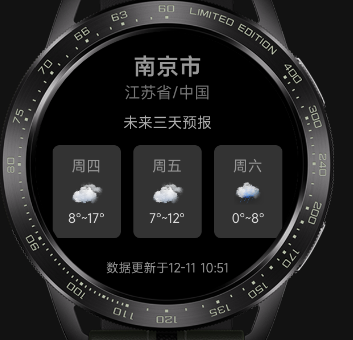
首页(未来3天预报):
- 展示城市/省份信息、"未来三天预报"摘要
- 每日日期、天气图标、温度区间
- 数据更新时间
- 交互:左滑 → 跳转天气详情页
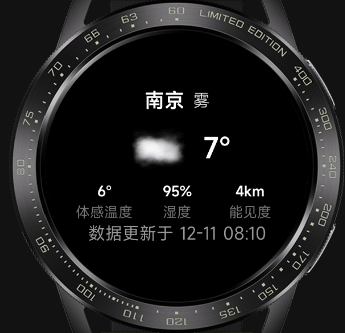
详情页(实时天气):
- 城市名、实时天气状态、天气图标
- 当前温度、体感温度、湿度、能见度
- 数据更新时间
- 交互:右滑 → 返回首页
3.3 完整代码
3.3.1 manifest.json(项目配置)
{
  "package": "com.application.watch.demo",
  "name": "weather-test",
  "versionName": "1.0.0",
  "versionCode": 1,
  "minPlatformVersion": 1000,
  "icon": "/common/logo.png",
  "deviceTypeList": ["watch"],
  "features": [
    { "name": "system.router" },
    { "name": "system.fetch" }
  ],
  "config": {
    "logLevel": "log",
    "designWidth": "device-width"
  },
  "router": {
    "entry": "pages/index",
    "pages": {
      "pages/index": { "component": "index" },
      "pages/detail": { "component": "detail" }
    }
  }
}
关键配置:
system.router(路由跳转)、system.fetch(网络请求)必须在features中声明。
3.3.2 首页——未来3天天气预报(pages/index/index.ux)
<template>
  <div class="page column" onswipe="handleSwipe">
    <!-- 头部区域 -->
    <div class="header column center">
      <text class="city">南京市</text>
      <text class="province">江苏省/中国</text>
    </div>

    <!-- 摘要信息 -->
    <div class="info column center">
      <text class="summary">未来三天预报</text>
    </div>

    <!-- 未来3天天气列表 -->
    <div class="list row">
      <div class="item column center" for="{{ list }}">
        <text class="date">{{ $item.fxDate }}</text>
        <image class="icon" src="/common/icons/{{ $item.iconDay }}.png"></image>
        <text class="temp">{{ $item.tempMin }}°~{{ $item.tempMax }}°</text>
      </div>
    </div>

    <!-- 更新时间 -->
    <div class="update-time center">
      <text>数据更新于 {{ update_time }}</text>
    </div>
  </div>
</template>

<script>
import router from '@system.router'
import fetch from '@system.fetch'

export default {
  private: {
    list: [
      { fxDate: "周日", tempMax: "12", tempMin: "-1", iconDay: "101" },
      { fxDate: "周一", tempMax: "13", tempMin: "0", iconDay: "100" },
      { fxDate: "周二", tempMax: "13", tempMin: "0", iconDay: "302" }
    ],
    update_time: '',
    location: { id: '101190101' },
    key: 'b8c73a52312b44918996b8b586c5150c'
  },

  onReady() {
    const weekDay = ['周日', '周一', '周二', '周三', '周四', '周五', '周六']

    fetch.fetch({
      url: `https://n344u9wyk7.re.qweatherapi.com/v7/weather/3d?location=${this.location.id}&key=${this.key}`
    }).then(res => {
      const result = res.data
      console.log('返回的数据:', JSON.stringify(result.data, null, 2))

      // 格式化列表数据
      this.list = result.data.daily.map(item => ({
        fxDate: weekDay[new Date(item.fxDate).getDay()],
        tempMin: item.tempMin,
        tempMax: item.tempMax,
        iconDay: item.iconDay
      }))

      // 格式化更新时间:"2025-11-29T13:51+08:00" → "11-29 13:51"
      this.update_time = result.data.updateTime
      if (this.update_time) {
        const datePart = this.update_time.split("T")[0].slice(5)
        const timePart = this.update_time.split("T")[1].split("+")[0]
        this.update_time = `${datePart} ${timePart}`
      }
    }).catch(error => {
      console.log(`数据请求失败:`, error)
    })
  },

  // 左滑 → 跳转详情页
  handleSwipe(eve) {
    if (eve.direction === 'left') {
      router.push({ uri: '/pages/detail' })
    }
  }
}
</script>

<style>
/* 全局重置 */
div, text, image {
  margin: 0;
  padding: 0;
  box-sizing: border-box;
}

.page {
  width: 100%;
  height: 100vh;
  padding: 30px 20px;
  background-color: #000000;
  border-radius: 50%;
  justify-content: space-around;
}

/* Flex 布局工具类 */
.column { display: flex; flex-direction: column; }
.row    { display: flex; flex-direction: row; }
.center { align-items: center; justify-content: center; }

text { color: #ffffff; }

/* 头部 */
.header { gap: 12px; }
.city { font-size: 40px; font-weight: bold; }
.province { font-size: 28px; color: #757575; }

/* 摘要 */
.info { margin: 5px 0; }
.summary { font-size: 26px; color: #b0b0b0; }

/* 预报列表 */
.list {
  width: 100%;
  justify-content: space-around;
  gap: 15px;
  margin: 5px 0;
}

.item {
  width: 28%;
  background-color: #333333;
  border-radius: 12px;
  padding: 20px 5px;
  gap: 15px;
}

.date { font-size: 26px; }
.icon { width: 60px; height: 60px; }
.temp  { font-size: 22px; color: #e0e0e0; }

/* 更新时间 */
.update-time { margin-top: 20px; }
.update-time text { font-size: 22px; color: #999; }
</style>
3.3.3 详情页——实时天气(pages/detail/detail.ux)
<template>
  <div class="root column center" @swipe="handleSwipe">
    <!-- 城市与天气状态 -->
    <div class="top row center">
      <text class="city">{{ city.name }}</text>
      <text class="status">{{ weather.text }}</text>
    </div>

    <!-- 天气图标与温度 -->
    <div class="middle row center">
      <image class="icon" src="/common/icons/{{ weather.icon }}.png"></image>
      <text class="temp">{{ weather.temp }}°</text>
    </div>

    <!-- 辅助信息 -->
    <div class="bottom row center">
      <div class="info-item column center">
        <text class="value">{{ weather.feelsLike }}°</text>
        <text class="label">体感温度</text>
      </div>
      <div class="info-item column center">
        <text class="value">{{ weather.humidity }}%</text>
        <text class="label">湿度</text>
      </div>
      <div class="info-item column center">
        <text class="value">{{ weather.vis }}km</text>
        <text class="label">能见度</text>
      </div>
    </div>

    <!-- 更新时间 -->
    <div class="update-time center">
      <text>数据更新于 {{ weather.obsTime }}</text>
    </div>
  </div>
</template>

<script>
import router from '@system.router'
import fetch from '@system.fetch'

export default {
  private: {
    city: { name: "南京", id: "101190101" },
    weather: {
      obsTime: "12-21 09:05",
      temp: "13",
      feelsLike: "10",
      icon: "101",
      text: "多云",
      humidity: "72",
      vis: "16"
    }
  },

  onReady() {
    let key = 'b8c73a52312b44918996b8b586c5150c'

    fetch.fetch({
      url: `https://n344u9wyk7.re.qweatherapi.com/v7/weather/now?location=${this.city.id}&key=${key}`
    }).then(res => {
      const result = res.data
      console.log('返回的数据:', JSON.stringify(result.data, null, 2))

      this.weather = result.data.now

      // 格式化时间:"2025-11-29T13:51+08:00" → "11-29 13:51"
      if (this.weather.obsTime) {
        const datePart = this.weather.obsTime.split("T")[0].slice(5)
        const timePart = this.weather.obsTime.split("T")[1].split("+")[0]
        this.weather.obsTime = `${datePart} ${timePart}`
      }
    }).catch(error => {
      console.log(`数据请求失败:`, error)
    })
  },

  // 右滑 → 返回首页
  handleSwipe(eve) {
    if (eve.direction === 'right') {
      router.back()
    }
  },

  onShow() {
    console.log('天气页面已加载')
  }
}
</script>

<style>
.root {
  width: 466px; height: 466px;
  background-color: #000;
  display: flex;
  flex-direction: column;
  justify-content: space-around;
  align-items: center;
  color: #fff;
  padding: 5px 20px;
  gap: 10px;
}

.top { width: 100%; justify-content: space-around; }
.city { font-size: 35px; font-weight: bold; margin-right: 15px; }
.status { font-size: 30px; color: #ddd; }

.middle { width: 100%; justify-content: center; }
.icon { width: 120px; height: 120px; margin-right: 20px; }
.temp { font-size: 48px; font-weight: bold; align-self: center; }

.bottom { width: 100%; justify-content: space-around; }
.info-item { width: 30%; text-align: center; }
.value { font-size: 24px; font-weight: bold; margin-bottom: 5px; }
.label { font-size: 25px; color: #757575; }

.update-time { width: 100%; font-size: 12px; color: #999; }

/* 布局工具类 */
.row { display: flex; flex-direction: row; }
.column { display: flex; flex-direction: column; }
.center { align-items: center; justify-content: center; }
</style>
3.4 代码解析
视图层(Template)
| 知识点 | 说明 |
|---|---|
| 基础组件 | div/text/image 搭建页面结构 |
| 列表渲染 | for="{{ list }}" 实现预报列表动态渲染 |
| 数据绑定 | {{ }} 双大括号实现视图与数据的双向关联 |
| Flex 布局 | column/row/center 工具类简化排版 |
| 事件绑定 | onswipe(首页)/ @swipe(详情页)两种写法均可 |
逻辑层(Script)
数据管理:
private: {
  list: [...],        // 设置默认数据——无网络时页面不会空白
  update_time: '',    // 接口返回后动态填充
  location: { id: '101190101' }
}
生命周期:
onReady() {
  // 页面首次渲染完成后发起请求,保证 DOM 就绪
  fetch.fetch({ url: '...' }).then(res => { /* 解析数据 */ })
}

onShow() {
  console.log('天气页面已加载')  // 辅助调试
}
网络请求(@system.fetch):
fetch.fetch({
  url: `https://<API_HOST>/v7/weather/now?location=${cityId}&key=${apiKey}`
}).then(res => {
  const result = res.data
  this.weather = result.data.now  // 更新响应式数据 → 自动更新视图
}).catch(error => {
  console.log(`数据请求失败:`, error)  // 降级:使用默认数据显示
})
可在浏览器中先测试 API 是否正常返回数据:
https://<API_HOST>/v7/weather/now?location=101190101&key=<YOUR_KEY>
路由跳转(@system.router):
import router from '@system.router'

// 跳转(push)
router.push({ uri: '/pages/detail' })

// 返回(back)
router.back()
事件处理(滑动):
handleSwipe(eve) {
  if (eve.direction === 'left') {
    router.push({ uri: '/pages/detail' })  // 左滑 → 打开详情
  }
  if (eve.direction === 'right') {
    router.back()  // 右滑 → 返回首页
  }
}
数据格式化:
// 日期转换:"2025-11-29" → "周日"
const weekDay = ['周日', '周一', '周二', '周三', '周四', '周五', '周六']
fxDate: weekDay[new Date(item.fxDate).getDay()]

// 时间提取:"2025-11-29T13:51+08:00" → "11-29 13:51"
const datePart = timeStr.split("T")[0].slice(5)      // "11-29"
const timePart = timeStr.split("T")[1].split("+")[0]  // "13:51"
样式层(Style)
| 策略 | 做法 |
|---|---|
| 样式重置 | 统一 div/text/image 的 margin: 0; padding: 0 |
| Flex 布局 | 所有排列都用 Flex,工具类复用(.row/.column/.center) |
| 响应式 | width: 28% 百分比布局 + gap 控制间距 |
| 层级化 | 全局 → 区域 → 元素,逐级细化 |
3.5 运行效果
完成代码后,在 AIoT-IDE 中选择模拟器,点击运行:
-
首页显示未来三天预报卡片(周日/周一/周二),左滑进入详情页
-
详情页显示实时温度、体感温度、湿度、能见度,右滑返回首页
-
数据从和风天气 API 实时获取,网络异常时显示预设默认数据
小结
本文通过一个完整的天气应用,覆盖了 openvela 快应用开发的核心流程:
manifest.json 配置  →  Template 视图  →  Script 逻辑  →  Style 样式
       ↓                    ↓                ↓              ↓
  路由 + 权限声明      组件+数据绑定     fetch+router+event   Flex布局
关键知识点回顾:
@system.fetch网络请求 + 异步处理(then/catch)@system.router路由跳转与返回for列表渲染 +{{ }}数据绑定- Flex 布局工具类设计
- 生命周期
onReady/onShow - 数据格式化(日期转换、时间截取)
- 默认数据兜底(网络异常时页面不空白)

欢迎加入DeepSeek 技术社区。在这里,你可以找到志同道合的朋友,共同探索AI技术的奥秘。
更多推荐


 1
1 0
0- 0


 已为社区贡献1条内容

所有评论(0)