TRAE使用体验(2):playwright UI自动化
输入:添加用户登录功能,预设两个登录账号(admin/111111, user/222222),信息录入后,展示是谁录入的数据登录功能添加后,无法登录,通过对话,自动修复了,原因是登录接口本身加了权限验证。
·
1. (续)上一篇文档项目,添加登录功能
输入:添加用户登录功能,预设两个登录账号(admin/111111, user/222222),信息录入后,展示是谁录入的数据
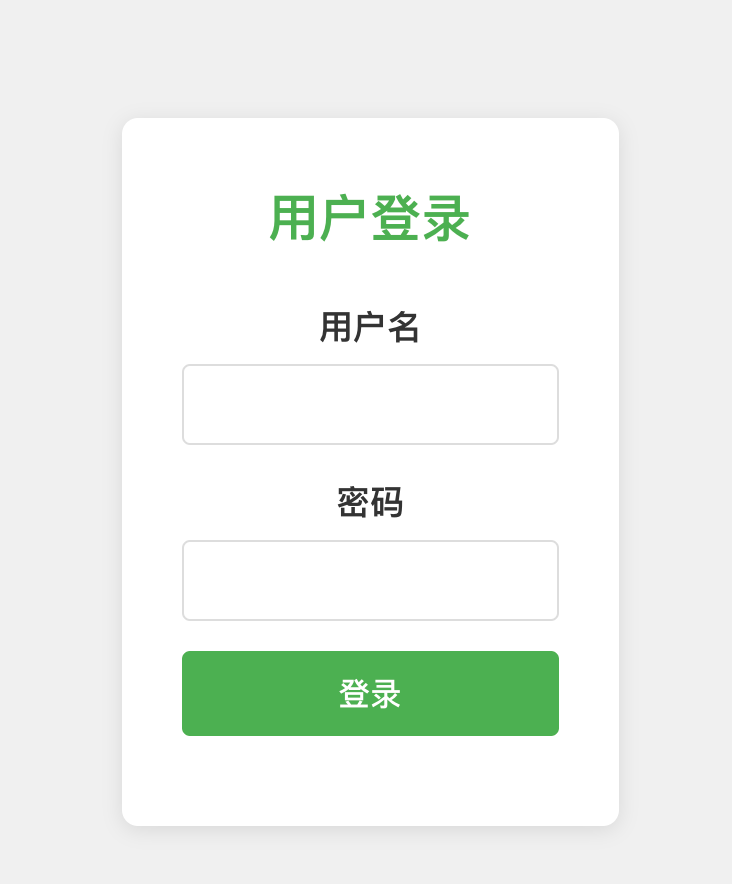
登录功能添加后,无法登录,通过对话,自动修复了,原因是登录接口本身加了权限验证
2. 添加UI自动化代码
输入:写一个UI自动化测试用例,使用python+playwright+pytest+allure,把登录功能抽取为装饰器,测试用例主要是分别验证admin和user登录后录入一条学生信息,验证录入完成后列表最新一条数据与录入数据一致。测试完成后暂时不需要删除录入的测试数据
结果在一个文件里面写了所有功能,继续优化
输入:将用户登录功能提取到conftest.py文件,并尽量简化写法
提取后,还是不够简洁,继续优化
输入:test_admin_login_add_student和test_user_login_add_student两个方法除了登录用户不一样之外,其操作步骤相同。 现需要将两个测试用例合并,登录用户参数化处理,比如@pytest.mark.parametrize
这次结果比较好
代码如下:
conftest.py文件:
import pytest
from playwright.sync_api import Playwright, sync_playwright
import allure

@pytest.fixture(scope="function")
def admin_login(playwright: Playwright):
    """admin 登录的 fixture"""
    # 启动浏览器
    browser = playwright.chromium.launch(
        headless=False,
        executable_path="/Applications/Google Chrome.app/Contents/MacOS/Google Chrome"
    )
    context = browser.new_context()
    page = context.new_page()

    try:
        with allure.step("使用admin账号登录"):
            page.goto("http://localhost:5174/")  # 注意:前端服务运行在5174端口
            page.fill("#username", "admin")
            page.fill("#password", "111111")
            page.click(".login-btn")
            # 等待登录成功,页面跳转到主页面
            page.wait_for_selector(".header")

        yield page
    finally:
        # 关闭浏览器
        context.close()
        browser.close()

@pytest.fixture(scope="function")
def user_login(playwright: Playwright):
    """user 登录的 fixture"""
    # 启动浏览器
    browser = playwright.chromium.launch(
        headless=False,
        executable_path="/Applications/Google Chrome.app/Contents/MacOS/Google Chrome"
    )
    context = browser.new_context()
    page = context.new_page()

    try:
        with allure.step("使用user账号登录"):
            page.goto("http://localhost:5174/")  # 注意:前端服务运行在5174端口
            page.fill("#username", "user")
            page.fill("#password", "222222")
            page.click(".login-btn")
            # 等待登录成功,页面跳转到主页面
            page.wait_for_selector(".header")

        yield page
    finally:
        # 关闭浏览器
        context.close()
        browser.close()
test_login_student.py文件:
import pytest
import allure
import time

class TestLoginStudent:
    @pytest.mark.parametrize("login_fixture, user_type, class_name", [
        ("admin_login", "Admin", "高一(1)班"),
        ("user_login", "User", "高一(2)班")
    ])
    @allure.feature("登录功能")
    @allure.story("用户登录后添加学生")
    @allure.title("测试用例:{user_type}登录后添加学生")
    def test_login_add_student(self, request, login_fixture, user_type, class_name):
        """测试用户登录后添加学生"""
        # 获取登录 fixture
        page = request.getfixturevalue(login_fixture)
        # 生成唯一的测试数据
        test_time = int(time.time())
        student_name = f"{user_type}测试学生_{test_time}"
        student_id = f"2026{test_time % 10000:04d}"

        with allure.step("点击学生管理标签"):
            page.click("text=学生管理")

        with allure.step("填写学生信息"):
            # 填写姓名
            name_input = page.query_selector("#name")
            if name_input:
                name_input.fill(student_name)
                print(f"姓名填充成功: {name_input.input_value()}")
            else:
                print("姓名输入框未找到")
            # 填写学号
            student_id_input = page.query_selector("#studentId")
            if student_id_input:
                student_id_input.fill(student_id)
                print(f"学号填充成功: {student_id_input.input_value()}")
            else:
                print("学号输入框未找到")
            # 填写班级
            class_name_input = page.query_selector("#className")
            if class_name_input:
                class_name_input.fill(class_name)
                print(f"班级填充成功: {class_name_input.input_value()}")
            else:
                print("班级输入框未找到")

        with allure.step("点击添加按钮"):
            # 点击添加按钮
            add_button = page.query_selector("button:has-text('添加')")
            if add_button:
                print("找到添加按钮")
                add_button.click()
                # 等待添加操作完成
                page.wait_for_timeout(3000)
                # 等待表格刷新
                page.wait_for_selector("table.student-table", timeout=5000)
            else:
                print("未找到添加按钮")

        with allure.step("验证学生是否添加成功"):
            # 等待表格加载
            page.wait_for_selector("table.student-table")
            # 打印表格内容进行调试
            table_content = page.inner_text("table.student-table")
            print(f"表格内容: {table_content}")
            # 验证最新一条数据与录入数据一致
            rows = page.query_selector_all("table.student-table tbody tr")
            print(f"表格行数: {len(rows)}")
            # 遍历所有行,打印每一行的内容
            for i, row in enumerate(rows):
                row_text = row.inner_text()
                print(f"行 {i+1} 内容: {row_text}")
            # 检查是否有新行添加
            assert len(rows) > 1, f"表格行数没有增加,当前行数: {len(rows)}"
            # 获取最后一行
            last_row = rows[-1]
            # 检查姓名
            name_cell = last_row.query_selector("td:nth-child(2)")
            assert name_cell and student_name in name_cell.inner_text(), f"姓名不匹配: {name_cell.inner_text() if name_cell else '未找到'}"
            # 检查学号
            id_cell = last_row.query_selector("td:nth-child(3)")
            assert id_cell and student_id in id_cell.inner_text(), f"学号不匹配: {id_cell.inner_text() if id_cell else '未找到'}"
            # 检查班级
            class_cell = last_row.query_selector("td:nth-child(4)")
            assert class_cell and class_name in class_cell.inner_text(), f"班级不匹配: {class_cell.inner_text() if class_cell else '未找到'}"

        # 测试完成后不需要删除测试数据
3. 运行报告
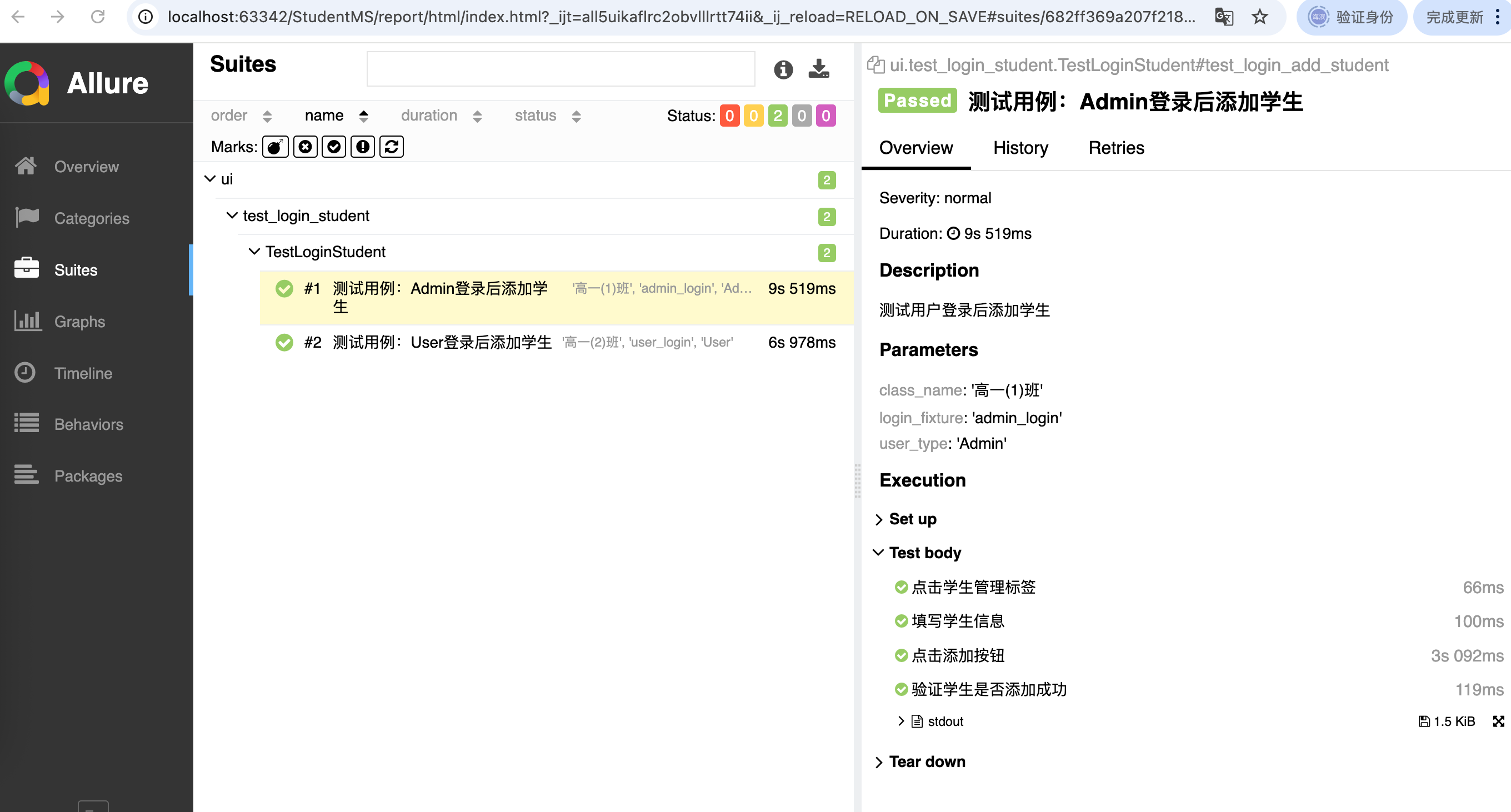 满意,收工!
4. 优化conftest
conftest登录代码冗余,进一步优化
输入: conftest里面的admin_login和user_login两个方法合并为一个,登录哪个账号以参数的形式传入
import pytest
from playwright.sync_api import Playwright, sync_playwright
import allure

def login_factory(username, password):
    """登录功能的工厂函数,用于创建不同用户的登录 fixture"""
    @pytest.fixture(scope="function")
    def login(playwright: Playwright):
        """登录功能的 fixture,用于在测试用例执行前自动登录"""
        # 启动浏览器
        browser = playwright.chromium.launch(
            headless=False,
            executable_path="/Applications/Google Chrome.app/Contents/MacOS/Google Chrome"
        )
        context = browser.new_context()
        page = context.new_page()

        try:
            with allure.step(f"使用{username}账号登录"):
                page.goto("http://localhost:5174/")  # 注意:前端服务运行在5174端口
                page.fill("#username", username)
                page.fill("#password", password)
                page.click(".login-btn")
                # 等待登录成功,页面跳转到主页面
                page.wait_for_selector(".header")

            yield page
        finally:
            # 关闭浏览器
            context.close()
            browser.close()
    return login

# 创建 admin 登录的 fixture
admin_login = login_factory("admin", "111111")

# 创建 user 登录的 fixture
user_login = login_factory("user", "222222")
OK啦

欢迎加入DeepSeek 技术社区。在这里,你可以找到志同道合的朋友,共同探索AI技术的奥秘。
更多推荐



 1
1 0
0- 0


 已为社区贡献1条内容

所有评论(0)