【有趣项目 Windows】Claude Code + Ollama 本地运行版:环境配置+安装 ClaudeCode+运行测试
【有趣项目 Windows】Claude Code + Ollama 本地运行版:环境配置+安装 ClaudeCode+运行测试
·
文章目录
1.准备环境
-
Ollama(本地LLM运行器) :下载并安装https://ollama.com/download
-
or
curl -fsSL https://ollama.com/download/ollama-linux-amd64.tar.zst \
    | sudo tar x -C /usr
$ curl -fsSL https://ollama.com/install.sh | sh
>>> Installing ollama to /usr/local
>>> Downloading ollama-linux-amd64.tar.zst
######################################################################## 100.0%
>>> Creating ollama user...
>>> Adding ollama user to render group...
>>> Adding ollama user to video group...
>>> Adding current user to ollama group...
>>> Creating ollama systemd service...
>>> Enabling and starting ollama service...
Created symlink /etc/systemd/system/default.target.wants/ollama.service → /etc/systemd/system/ollama.service.
>>> NVIDIA GPU installed.
-
安装后确认:
ollama --version -
启动服务后默认 API 地址。
-
注:需要安装Claude Code后Ollama才能调用claude:
PS C:\windows\system32> ollama launch claude

Model Configuration


pulling manifest
pulling a3de86cd1c13: 100% ▕██████████████████████████████████████████████████████████▏ 5.2 GB
pulling ae370d884f10: 100% ▕██████████████████████████████████████████████████████████▏ 1.7 KB
pulling d18a5cc71b84: 100% ▕██████████████████████████████████████████████████████████▏  11 KB
pulling cff3f395ef37: 100% ▕██████████████████████████████████████████████████████████▏  120 B
pulling 05a61d37b084: 100% ▕██████████████████████████████████████████████████████████▏  487 B
verifying sha256 digest
writing manifest
success

Launching Claude Code with qwen3:8b...
Error: claude is not installed, install from https://code.claude.com/docs/en/quickstart
PS C:\windows\system32>
2.安装 Claude Code CLI
- Linux:
curl -fsSL https://claude.ai/install.sh | bash
$ curl -fsSL https://claude.ai/install.sh | bash
Setting up Claude Code...

✔ Claude Code successfully installed!

  Version: 2.1.104

  Location: ~/.local/bin/claude


  Next: Run claude --help to get started

⚠ Setup notes:
  • Native installation exists but ~/.local/bin is not in your PATH. Run:

  echo 'export PATH="$HOME/.local/bin:$PATH"' >> ~/.bashrc && source ~/.bashrc


✅ Installation complete!
- Windows PowerShell:
irm https://claude.ai/install.ps1 | iex
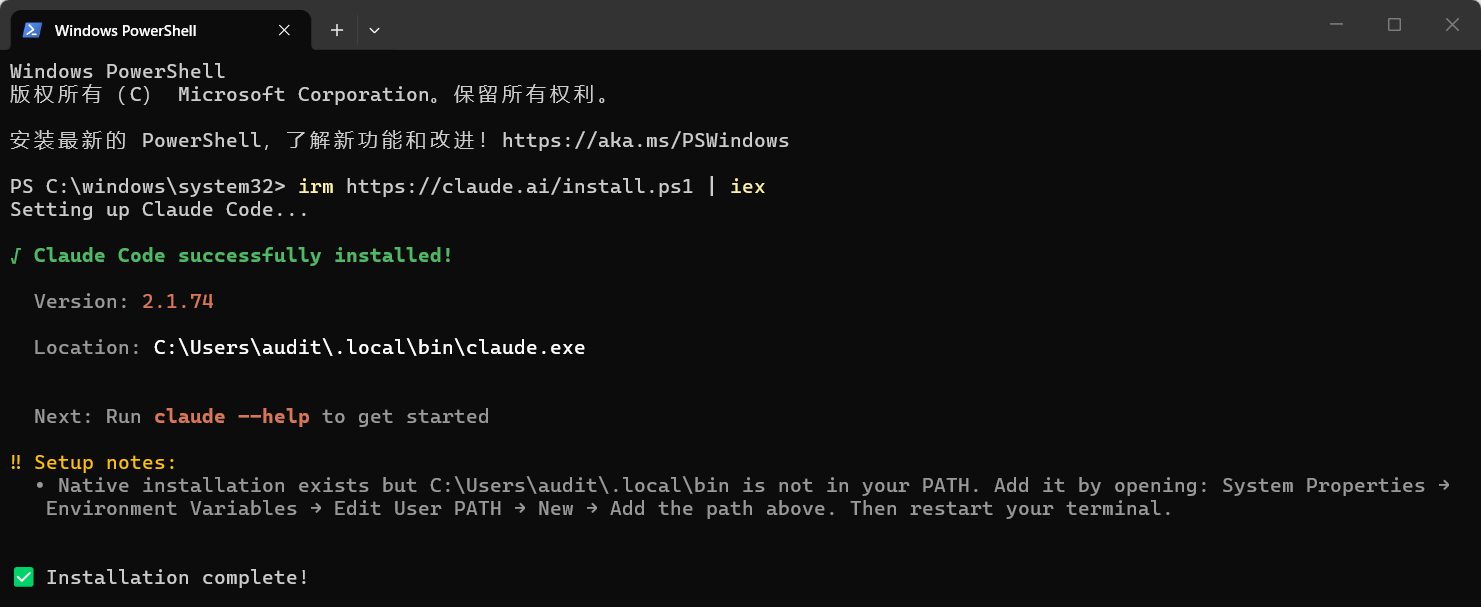
Windows PowerShell
版权所有(C) Microsoft Corporation。保留所有权利。

安装最新的 PowerShell,了解新功能和改进!https://aka.ms/PSWindows

PS C:\windows\system32> irm https://claude.ai/install.ps1 | iex
Setting up Claude Code...

√ Claude Code successfully installed!

  Version: 2.1.74

  Location: C:\Users\audit\.local\bin\claude.exe


  Next: Run claude --help to get started

‼ Setup notes:
  • Native installation exists but C:\Users\audit\.local\bin is not in your PATH. Add it by opening: System Properties →
   Environment Variables → Edit User PATH → New → Add the path above. Then restart your terminal.


✅ Installation complete!

PS C:\windows\system32>
- 安装完成后测试:
claude
- 如果出现 CLI 说明安装成功,然后将C:\Users\audit.local\bin加入环境变量。
3.启动与配置Claude Code
- 新版本 Ollama 支持直接启动 Claude Code。运行:
ollama launch claude
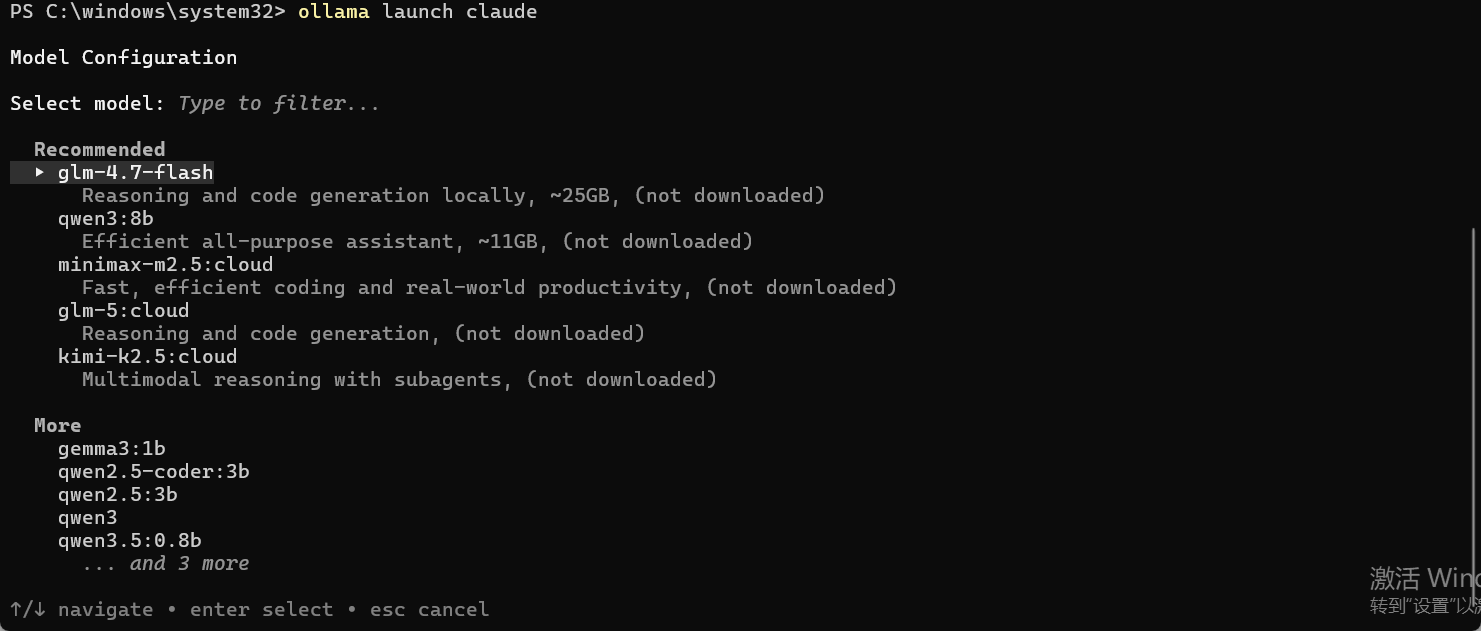
- 选择模型(没有会启动下载):

- 选本地模型即可。启动后 Claude Code 就可以:
- 修改代码
- 写文件
- 调试项目
- 执行命令
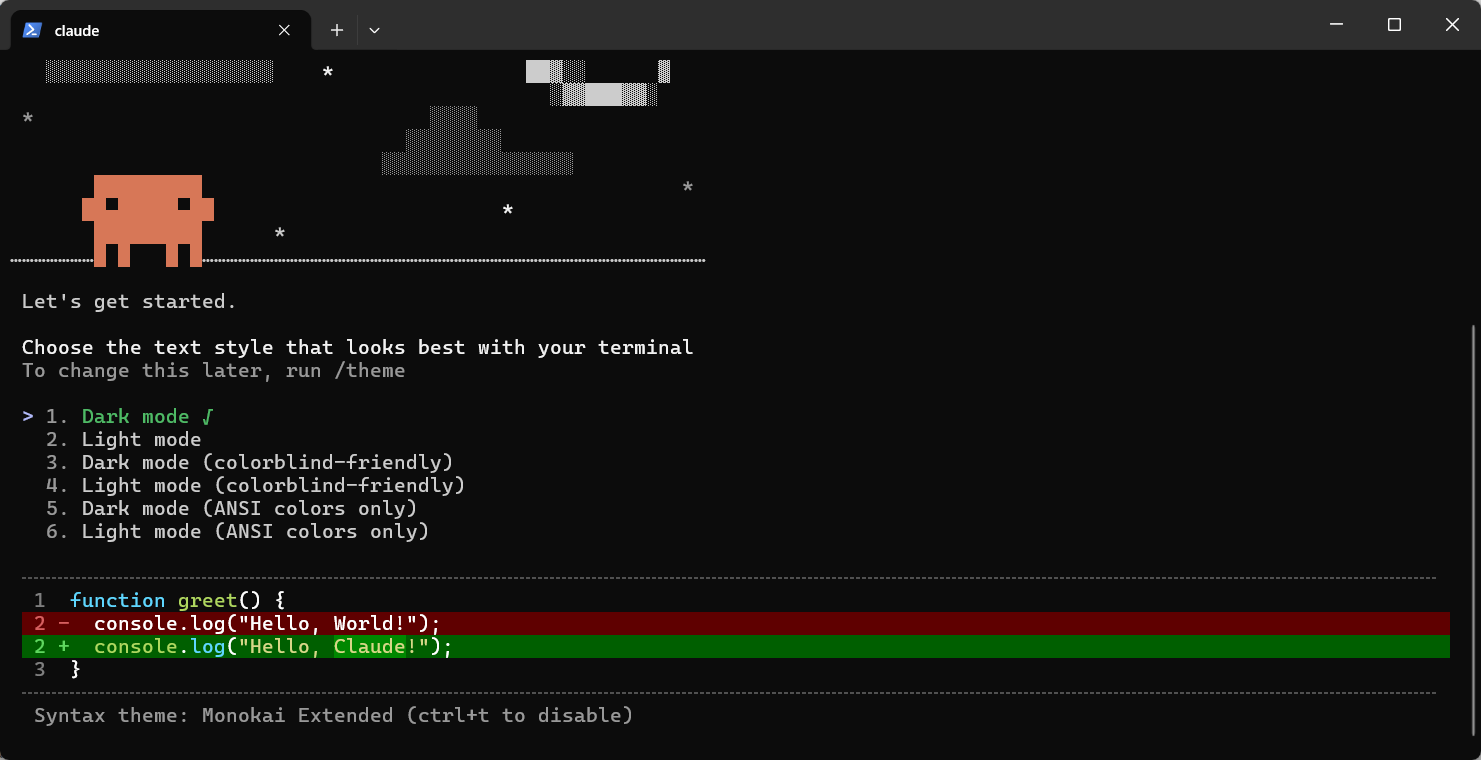
3.1 选择主题
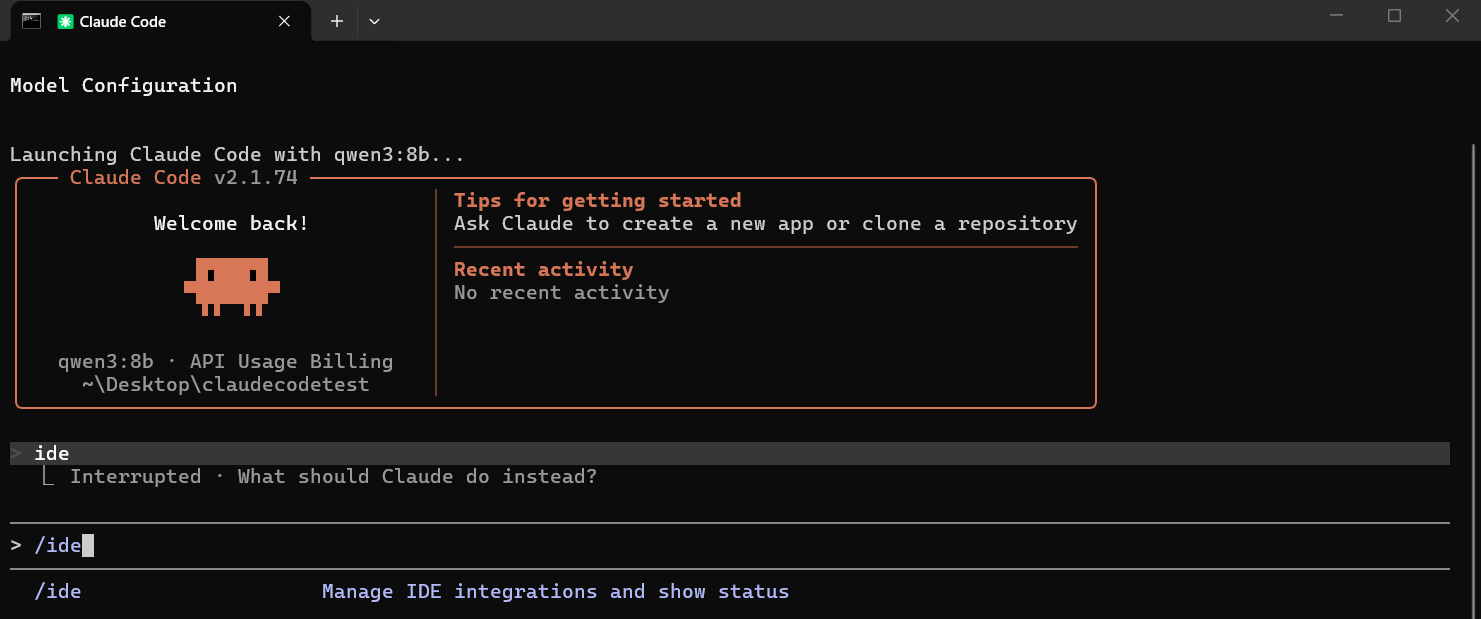
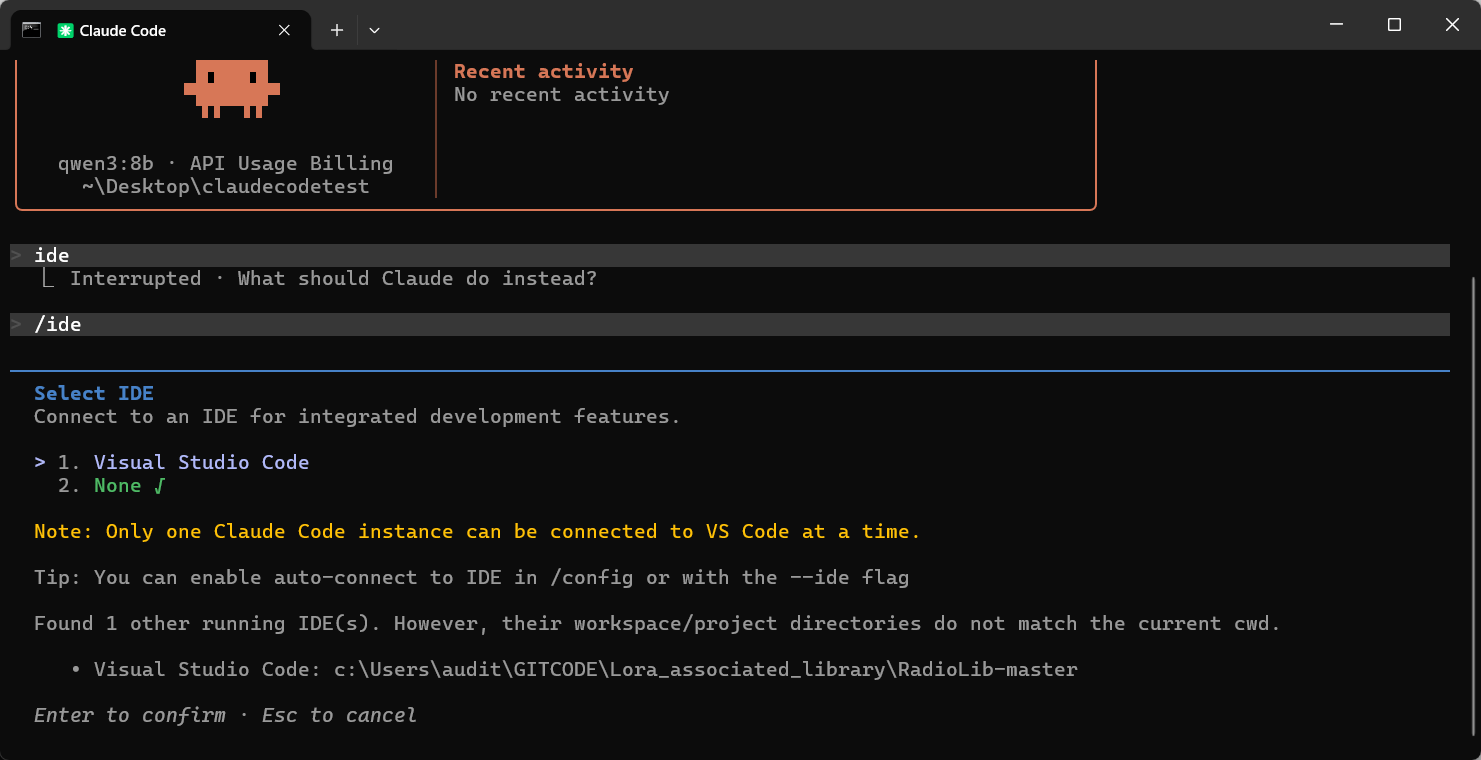
3.2 联动IDE
-
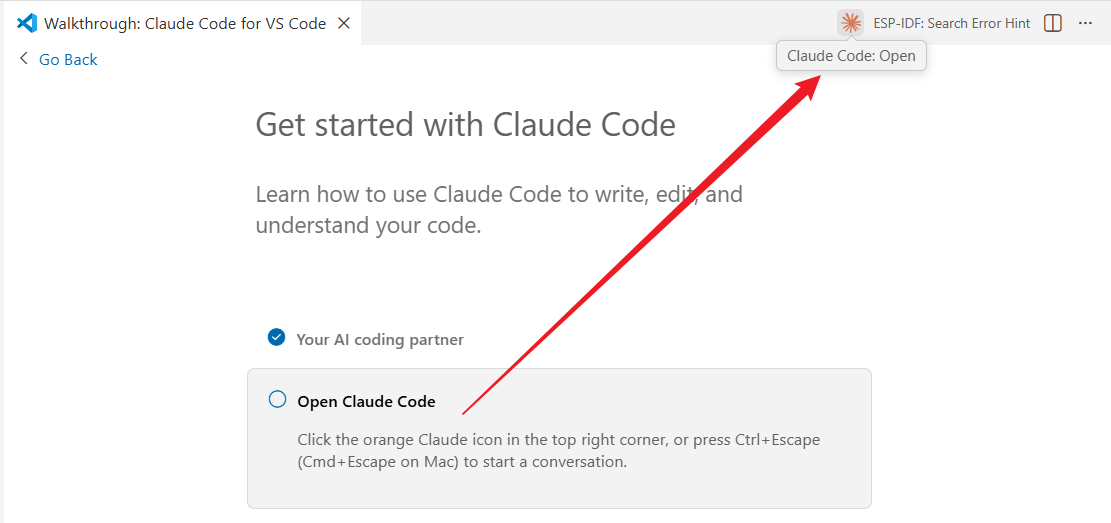
建议 让 VSCode 打开同一个项目目录。 打开 Visual Studio Code,再 打开 Claude Code 当前目录。
-
在这个目录的终端运行claude,然后执行 /ide,再选Visual Studio Code,使 Claude Code 绑定当前项目。
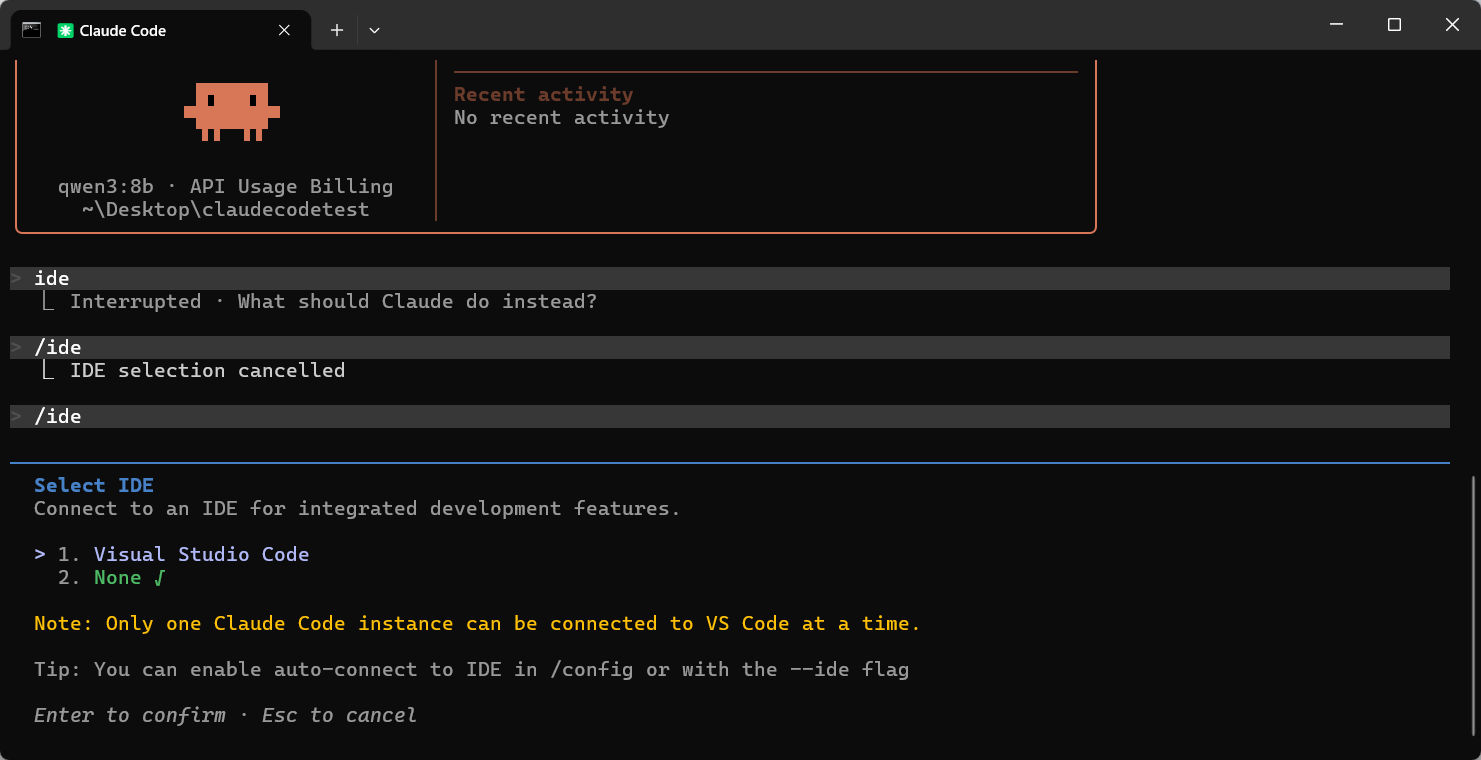

- 我选的no
3.3 运行测试
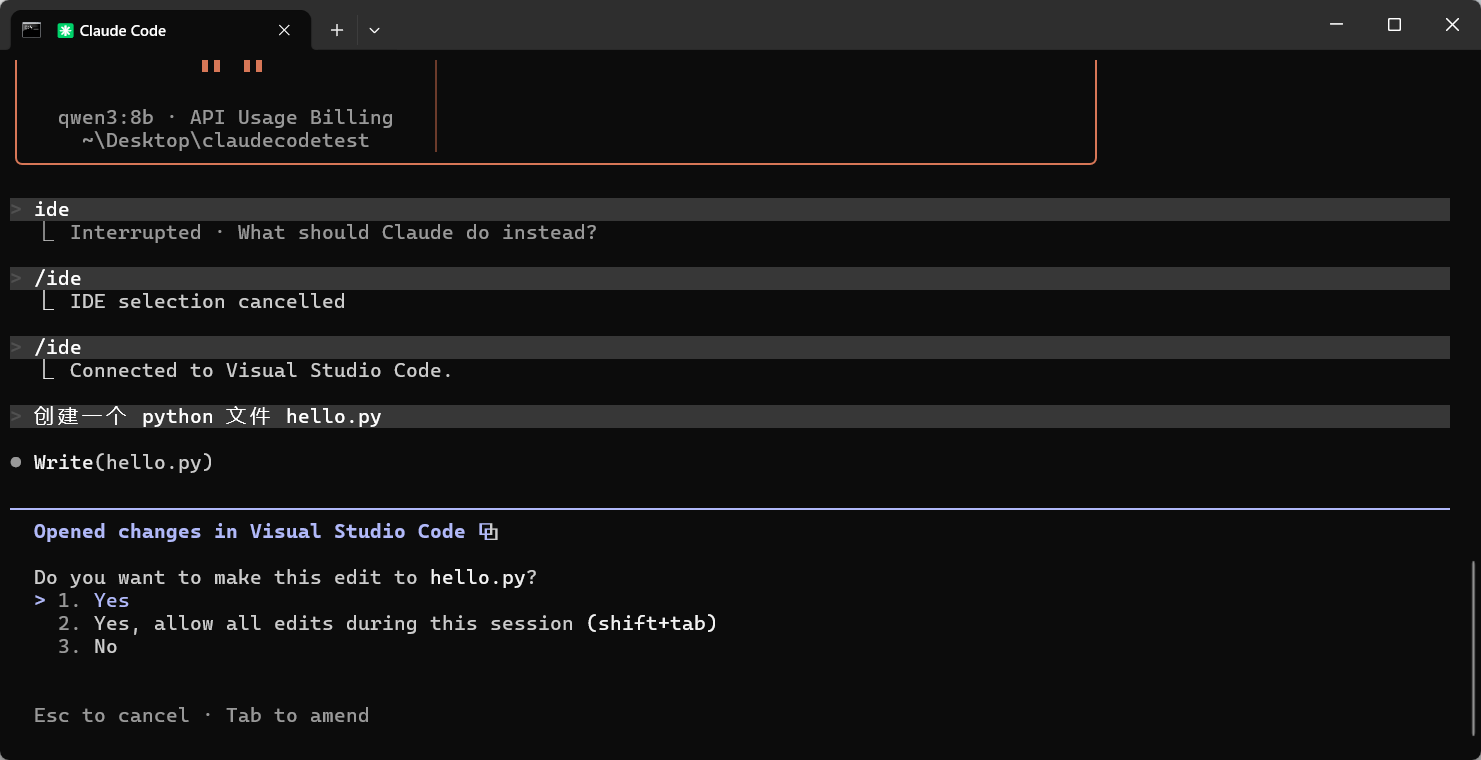
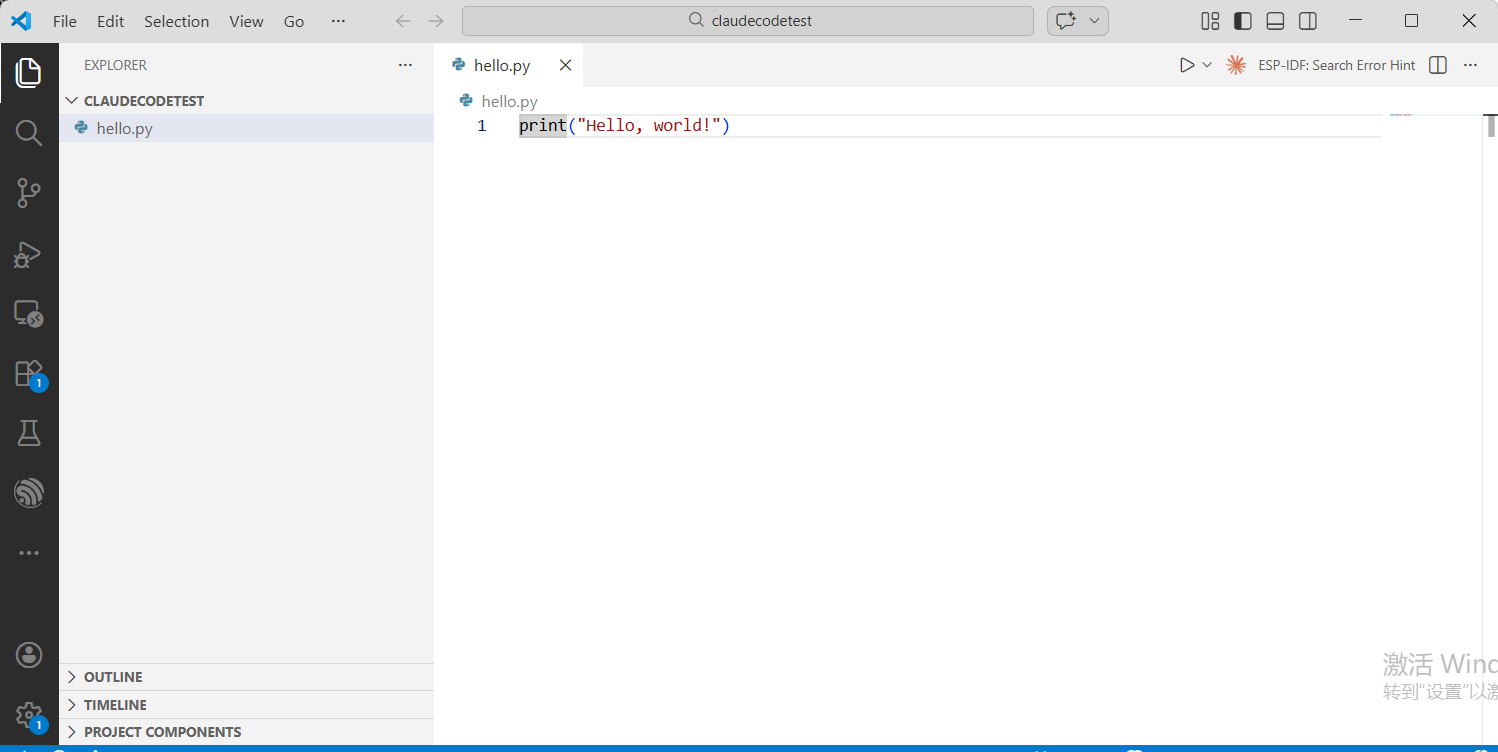
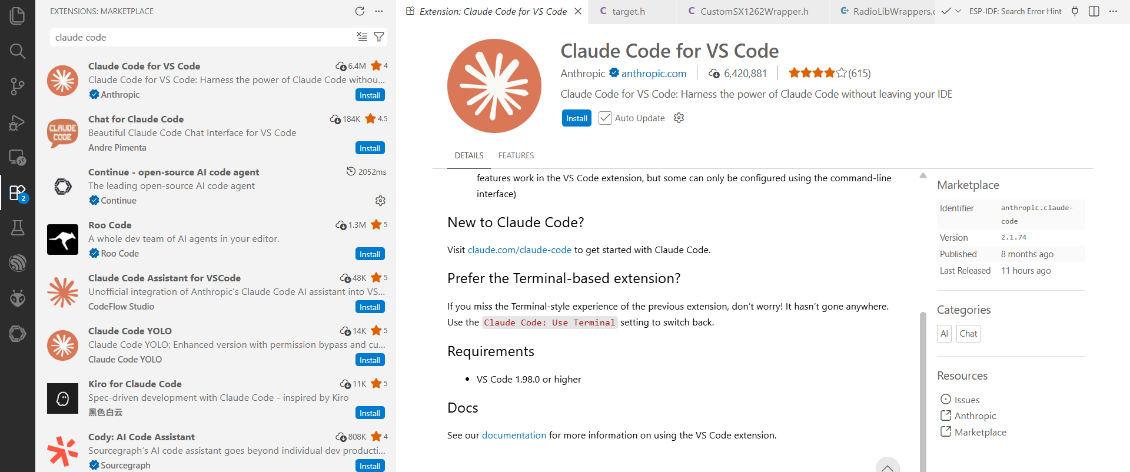
其他安装方法:vscode:extension/anthropic.claude-code
- 在 Visual Studio Code 里安装 AI 插件,让它调用 本地 Ollama 模型:
CG

欢迎加入DeepSeek 技术社区。在这里,你可以找到志同道合的朋友,共同探索AI技术的奥秘。
更多推荐



 9
9 0
0- 0


 已为社区贡献3条内容

所有评论(0)