Gemini CLI 在 IDEA/WEBStorm中无法回答 — 修复说明
问题现象:
CMD 中运行 gemini 正常,WebStorm Terminal 中一直显示 `Thinking...` 后超时退出,报错:
Error: exception TypeError: fetch failed sending request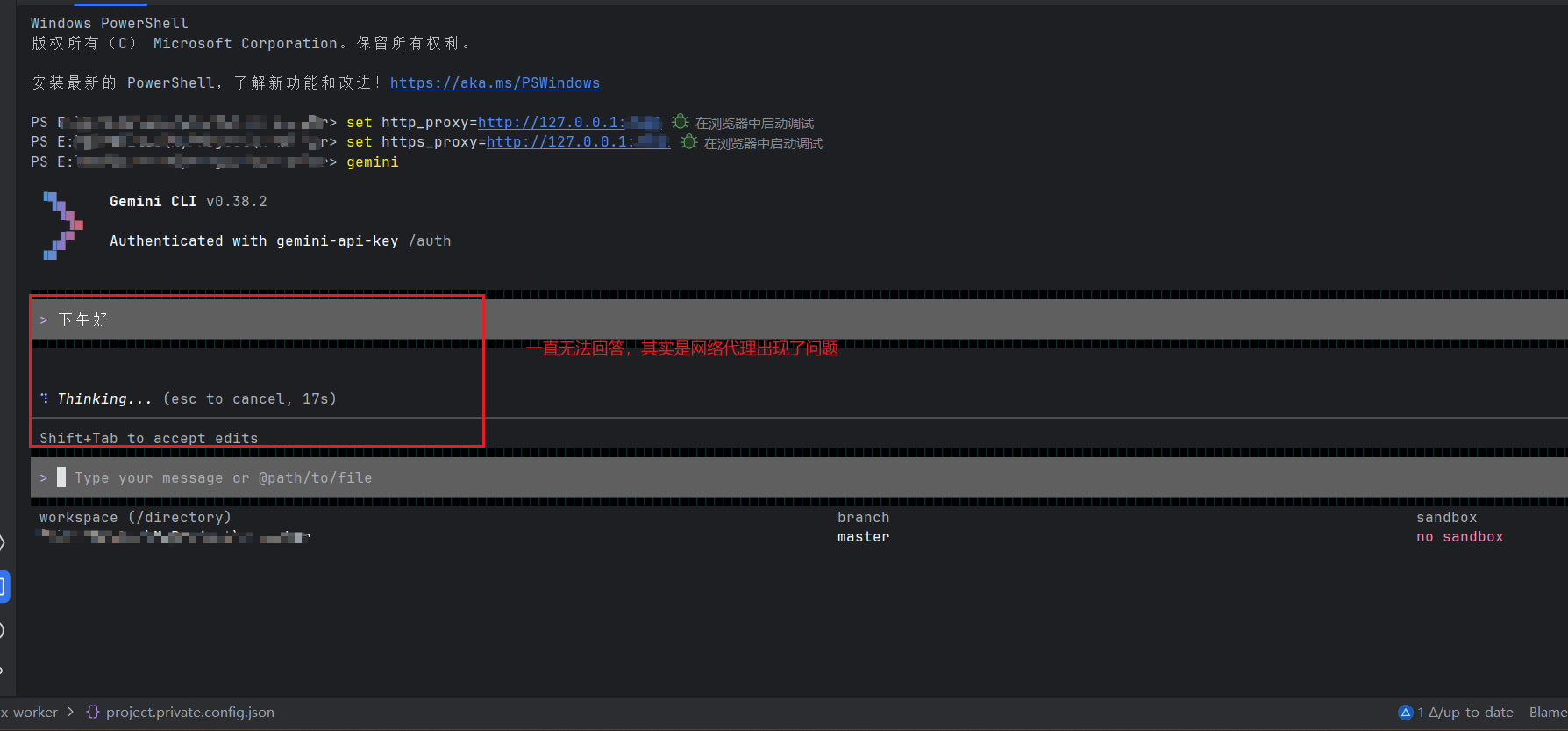
根本原因:
WebStorm Terminal 默认使用 PowerShell,与 CMD 的环境变量**独立**,不继承你手动 `set` 的代理变量(`http_proxy` / `https_proxy`)。
因此 gemini CLI 访问不到 Google API。
方案一:设系统级环境变量(一劳永逸,但我不推荐)
- Win + R →
sysdm.cpl→ 高级 → 环境变量 - 在系统变量里新建:
HTTP_PROXY=http://127.0.0.1:你的代理端口号HTTPS_PROXY=http://127.0.0.1:你的代理端口号
不推荐原因:如果有其他插件,例如通义灵码也会去读取这个环境变量,会导致你在使用时候也需要连接VPN
方案二:改 WebStorm Terminal 的 Shell(推荐)
1. WebStorm Terminal Shell 改为 cmd.exe,文件路径:
# 找到自己对应的配置,路径都差不多

C:\Users\用户\AppData\Roaming\JetBrains\WebStorm2025.2\options\terminal.xml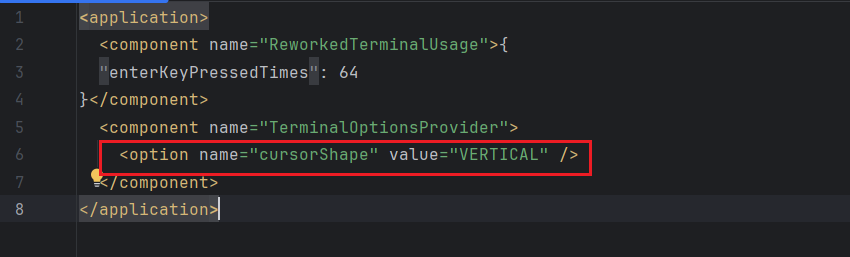
修改内容:** 添加了 `<option name="shellPath">cmd.exe</option>`
2. 添加gemini.cmd 启动脚本内置代理,文件路径:
# 找到ndoe的安装位置,注意如果使用了nvm需要找到当前使用版本的node位置

C:\Users\用户\AppData\Roaming\nvm\v22.22.2\gemini.cmd
@ECHO off
GOTO start
:find_dp0
SET dp0=%~dp0
EXIT /b
:start
SETLOCAL
CALL :find_dp0
REM ===== 自动设置代理(无需手动 set)=====
SET HTTP_PROXY=http://127.0.0.1:你的代理端口
SET HTTPS_PROXY=http://127.0.0.1:你的代理端口
SET http_proxy=http://127.0.0.1:你的代理端口
SET https_proxy=http://127.0.0.1:你的代理端口
REM ==========================================
IF EXIST "%dp0%\node.exe" (
SET "_prog=%dp0%\node.exe"
) ELSE (
SET "_prog=node"
SET PATHEXT=%PATHEXT:;.JS;=;%
)
endLocal & goto #_undefined_# 2>NUL || title %COMSPEC% & "%_prog%" "%dp0%\node_modules\@google\gemini-cli\bundle\gemini.js" %*
3. gemini.ps1 启动脚本内置代理,文件路径:
# 找到ndoe的安装位置,注意如果使用了nvm需要找到当前使用版本的node位置

C:\Users\用户\AppData\Roaming\nvm\v22.22.2\gemini.ps1
#!/usr/bin/env pwsh
# ===== 自动设置代理(无需手动 set)=====
$env:HTTP_PROXY="http://127.0.0.1:你的代理端口"
$env:HTTPS_PROXY="http://127.0.0.1:你的代理端口"
$env:http_proxy="http://127.0.0.1:你的代理端口"
$env:https_proxy="http://127.0.0.1:你的代理端口"
# ==========================================
$basedir=Split-Path $MyInvocation.MyCommand.Definition -Parent
$exe=""
if ($PSVersionTable.PSVersion -lt "6.0" -or $IsWindows) {
# Fix case when both the Windows and Linux builds of Node
# are installed in the same directory
$exe=".exe"
}
$ret=0
if (Test-Path "$basedir/node$exe") {
# Support pipeline input
if ($MyInvocation.ExpectingInput) {
$input | & "$basedir/node$exe" "$basedir/node_modules/@google/gemini-cli/bundle/gemini.js" $args
} else {
& "$basedir/node$exe" "$basedir/node_modules/@google/gemini-cli/bundle/gemini.js" $args
}
$ret=$LASTEXITCODE
} else {
# Support pipeline input
if ($MyInvocation.ExpectingInput) {
$input | & "node$exe" "$basedir/node_modules/@google/gemini-cli/bundle/gemini.js" $args
} else {
& "node$exe" "$basedir/node_modules/@google/gemini-cli/bundle/gemini.js" $args
}
$ret=$LASTEXITCODE
}
exit $ret
你还需要做的
STEP 1 — 重启 WebStorm(必须)
否则 `terminal.xml` 的修改不生效。
STEP 2 — 测试 gemini
在 WebStorm Terminal 中: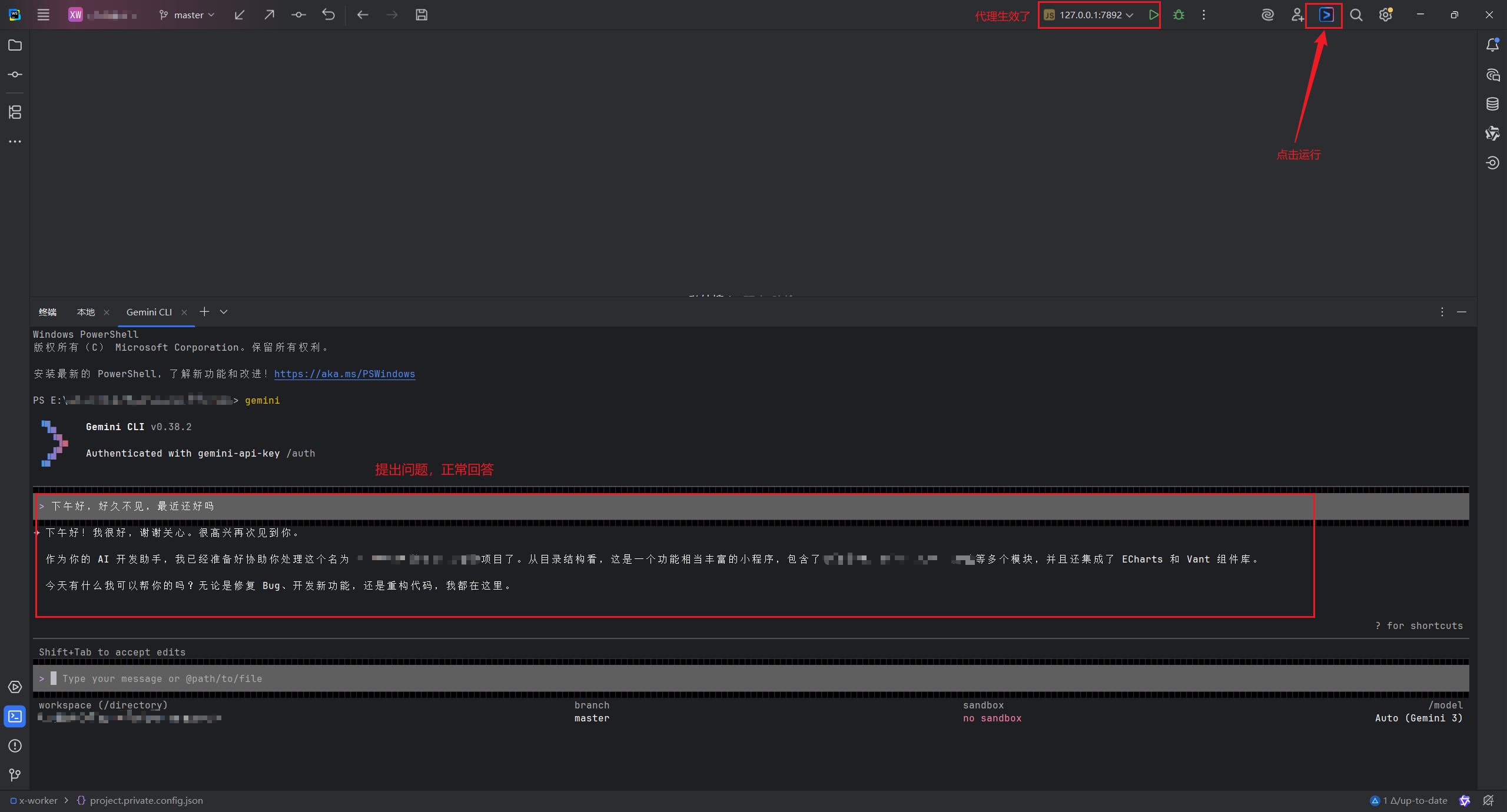
现在应该可以正常回答了,不再需要手动 set。
STEP 3 — 解决 WebStorm 内置插件 API 权限
打开浏览器访问以下链接,点击 **「启用」** 按钮:
> https://console.developers.google.com/apis/api/cloudaicompanion.googleapis.com/overview?project=gen-lang-client-0814285344
等待 2 分钟,再在 WebStorm 内置 AI 面板中重试。
⚠️ 注意:如果只用命令行 `gemini`,不需要做这一步。STEP 2 正常即表示修复成功

欢迎加入DeepSeek 技术社区。在这里,你可以找到志同道合的朋友,共同探索AI技术的奥秘。
更多推荐

 6
6 0
0- 0


 已为社区贡献1条内容

所有评论(0)