Vibecoding避坑指南:codex生成notebook中文乱码
摘要:Windows系统下VS Code中使用Codex编辑Jupyter Notebook时出现中文乱码,原因是PowerShell默认GBK编码与VS Code的UTF-8编码冲突。解决方法是将PowerShell编码改为UTF-8:1) 创建/修改$PROFILE文件;2) 添加UTF-8编码配置命令;3) 检查执行策略权限。最终确保chcp显示65001(UTF-8代码页)即可解决乱码问题
·
问题复现:
Windows系统,在vscode中使用codex编辑jupyter notebook时,出现大量中文乱码。
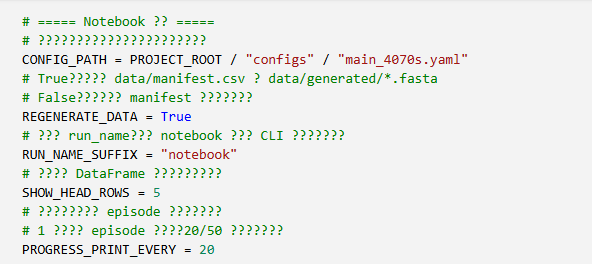
原因分析:
codex通过powershell命令行编辑notebook,power shell的默认中文编码是GBK,而vscode和codex中的文件编码方式默认是UTF-8。文件编码冲突导致乱码,可以通过power shell命令行确认。
chcp
GBK编码输出:
而UTF-8应输出936。
解决方式:
推荐做法:将活动编码页代码配置写入 PowerShell Profile
先查看你的 Profile 路径:
$PROFILE
如果文件不存在,创建它:
New-Item -ItemType File -Force $PROFILE
用记事本打开:
notepad $PROFILE
把下面内容加入文件:
chcp 65001 > $null

[Console]::InputEncoding = [System.Text.UTF8Encoding]::new()
[Console]::OutputEncoding = [System.Text.UTF8Encoding]::new()
$OutputEncoding = [System.Text.UTF8Encoding]::new()
保存后,关闭 PowerShell,重新打开,再检查:
chcp
[Console]::OutputEncoding.CodePage
$OutputEncoding.CodePage
应该看到:
活动代码页: 65001
65001
65001
注意事项:
如果 Profile 被禁止执行
有时重新打开 PowerShell 会提示配置文件不能运行。执行:
Set-ExecutionPolicy -Scope CurrentUser RemoteSigned
然后重新打开 PowerShell。
如果编辑时显示文件不存在
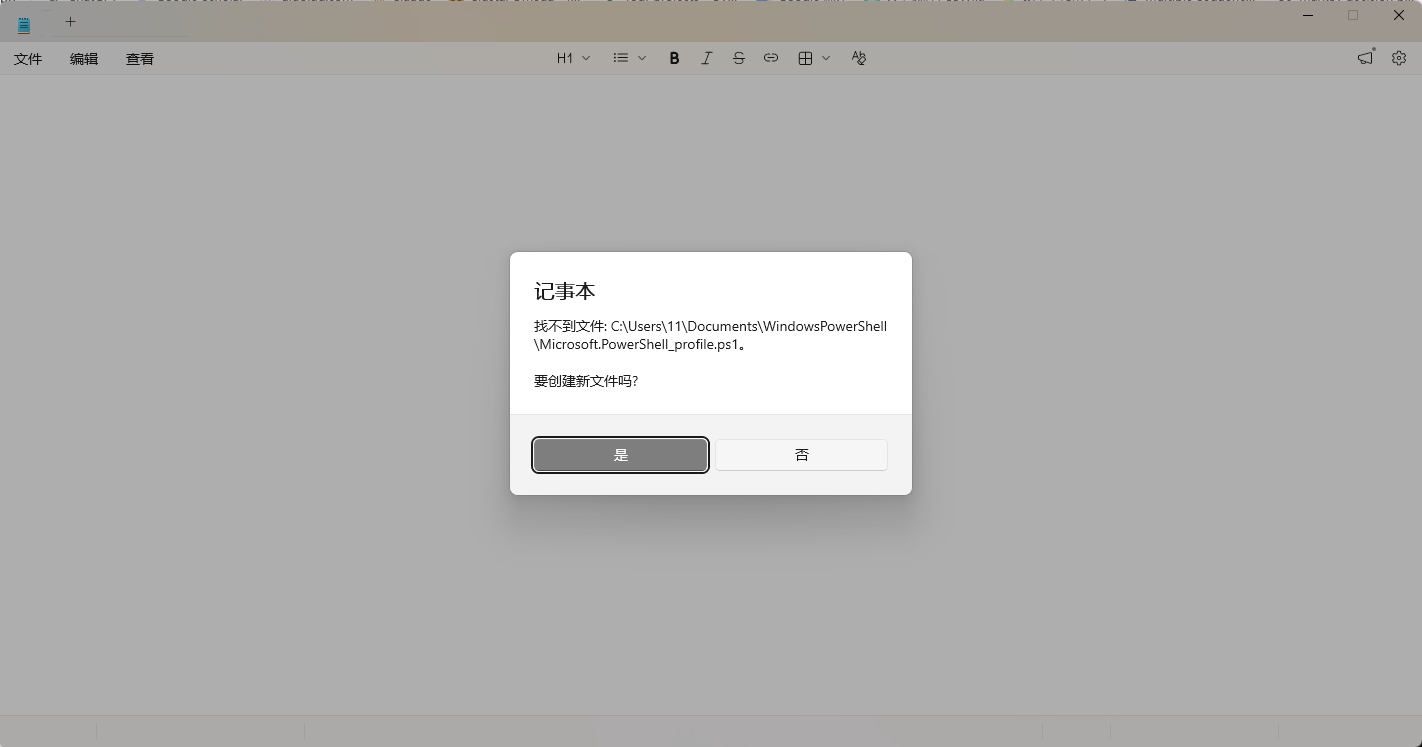
点击是然后正常粘贴即可。

欢迎加入DeepSeek 技术社区。在这里,你可以找到志同道合的朋友,共同探索AI技术的奥秘。
更多推荐



 1
1 0
0- 0


 已为社区贡献1条内容

所有评论(0)