Windows快速安装ClaudeCode全攻略
Claude Code 是 Anthropic 公司推出的命令行工具,让开发者能够通过终端与 Claude AI 模型进行交互。本文将为您提供在 Windows 系统上快速安装和配置 Claude Code 的完整指南,帮助您快速上手这个强大的 AI 开发工具。
前言
Claude Code 是 Anthropic 公司推出的命令行工具,让开发者能够通过终端与 Claude AI 模型进行交互。本文将为您提供在 Windows 系统上快速安装和配置 Claude Code 的完整指南,帮助您快速上手这个强大的 AI 开发工具。
系统要求
在开始安装之前,请确保您的 Windows 系统满足以下要求:
- Windows 10 或 Windows 11
- Node.js 14.0 或更高版本
- npm(通常随 Node.js 一起安装)
- 稳定的互联网连接
安装步骤
步骤 1:安装 Node.js
如果您的系统尚未安装 Node.js,请按照以下步骤安装:
- 访问 Node.js 官方网站
- 下载 LTS(长期支持)版本
- 运行安装程序,按照默认设置完成安装
- 安装完成后,打开命令提示符验证安装
node -v
npm -v
步骤 2:全局安装 Claude Code
打开命令提示符或 PowerShell,运行以下命令全局安装 Claude Code:
npm config set registry https://registry.npmmirror.com
npm install -g @anthropic-ai/claude-code
验证安装
claude--version步骤 3:跳过登录验证
编辑或新增 ~/.claude.json (Windows 路径: C:\Users\<用户名>\.claude.json ),将 hasCompletedOnboarding 设置为 true ,跳过 Anthropic 官方登录验证。
{
  "hasCompletedOnboarding": true
}
获取体验TOKEN
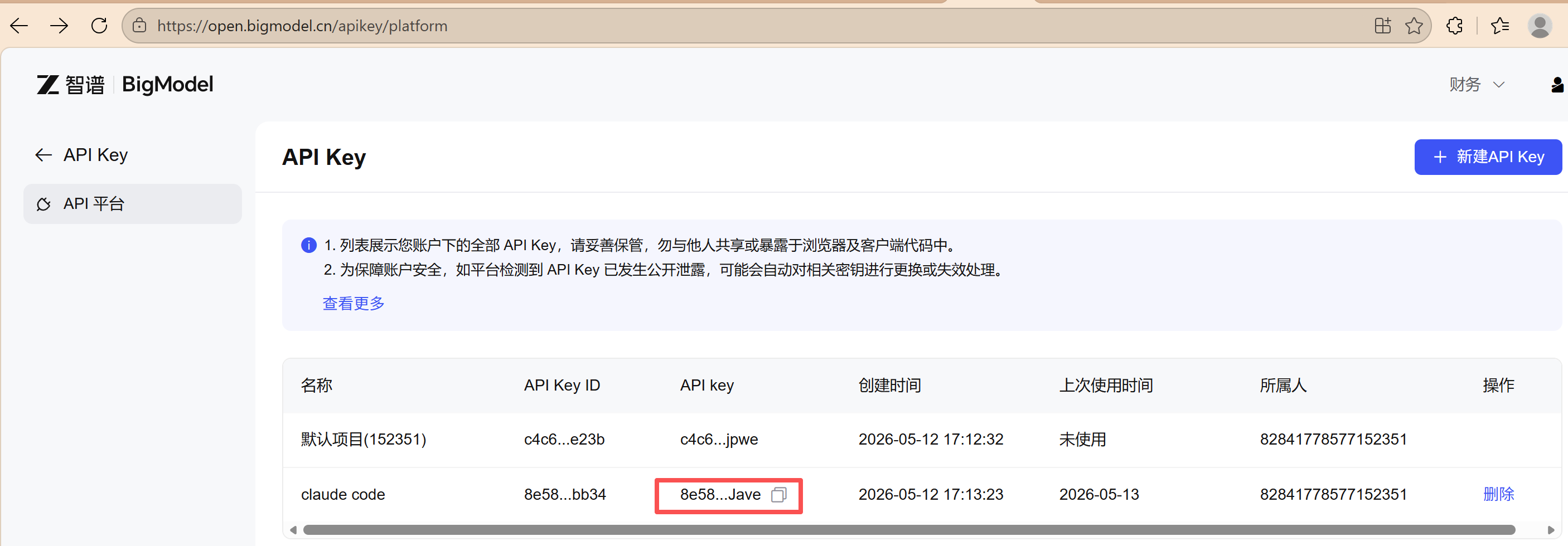
为了体验claude code的使用,申请智谱的体验token,api key的获取如下:
使用ccSwitch并配置Model
步骤 1:下载ccSwitch
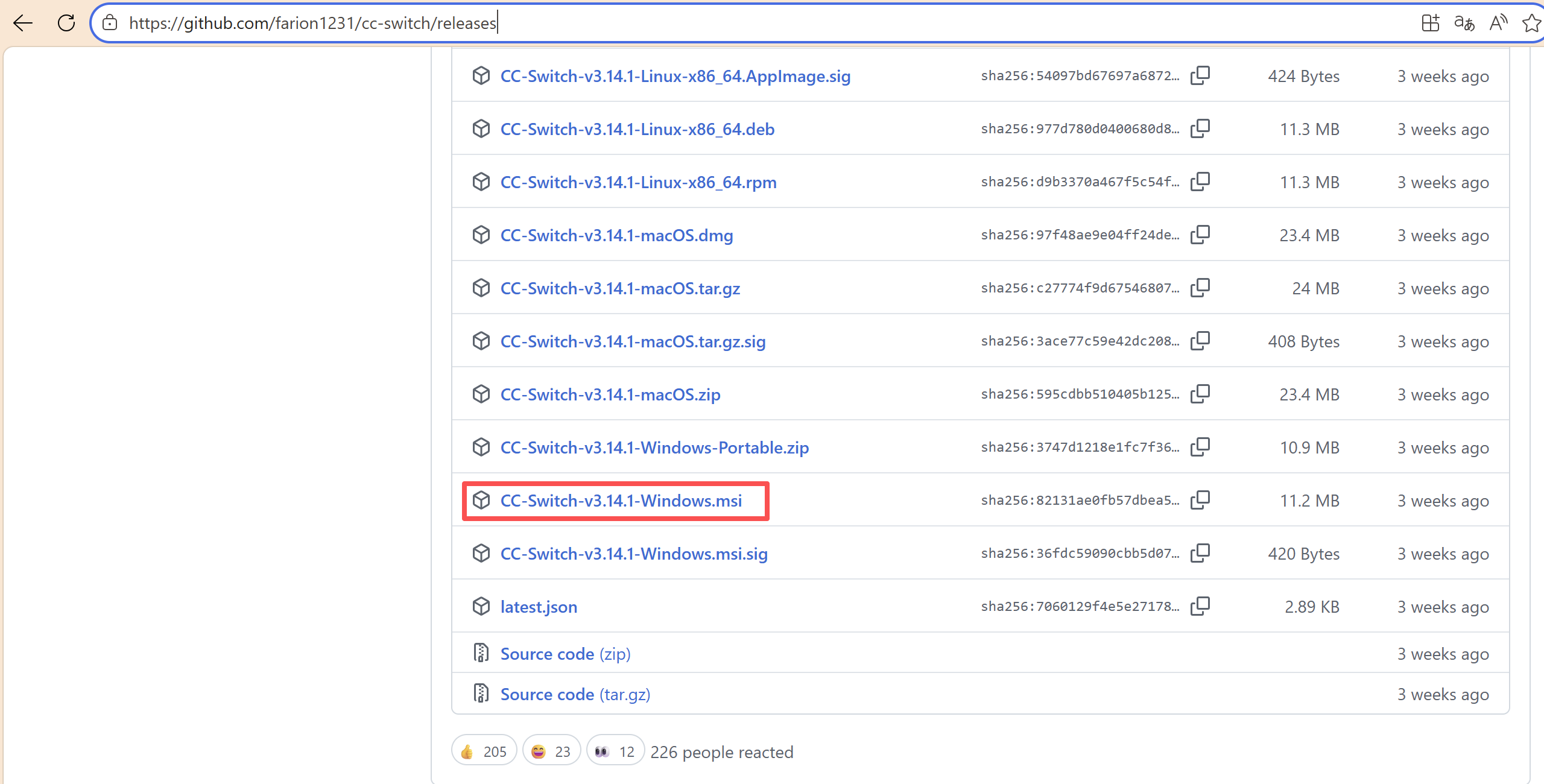
访问 ccSwitch 的 GitHub Releases 页面(Releases · farion1231/cc-switch)下载对应版本,并点击安装。
步骤 2:模型配置
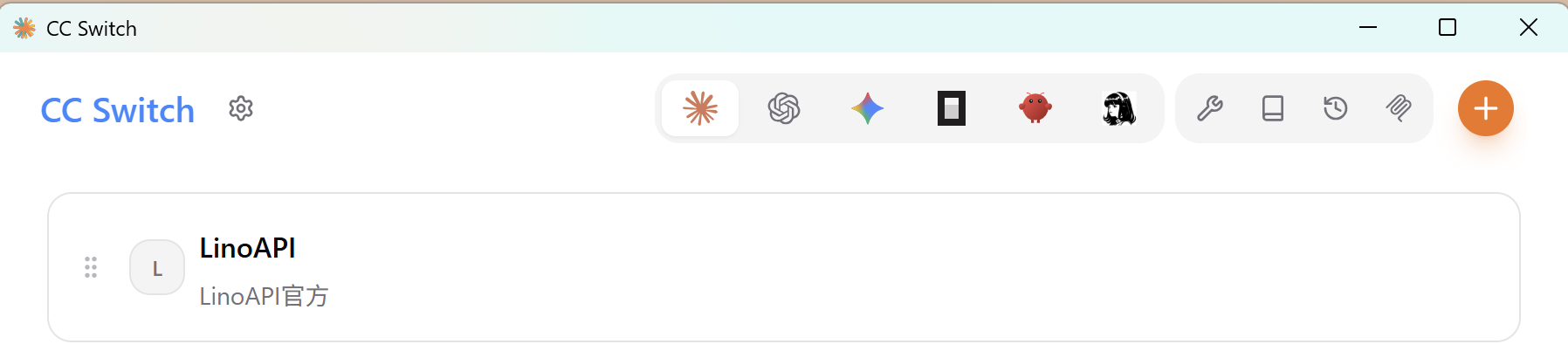
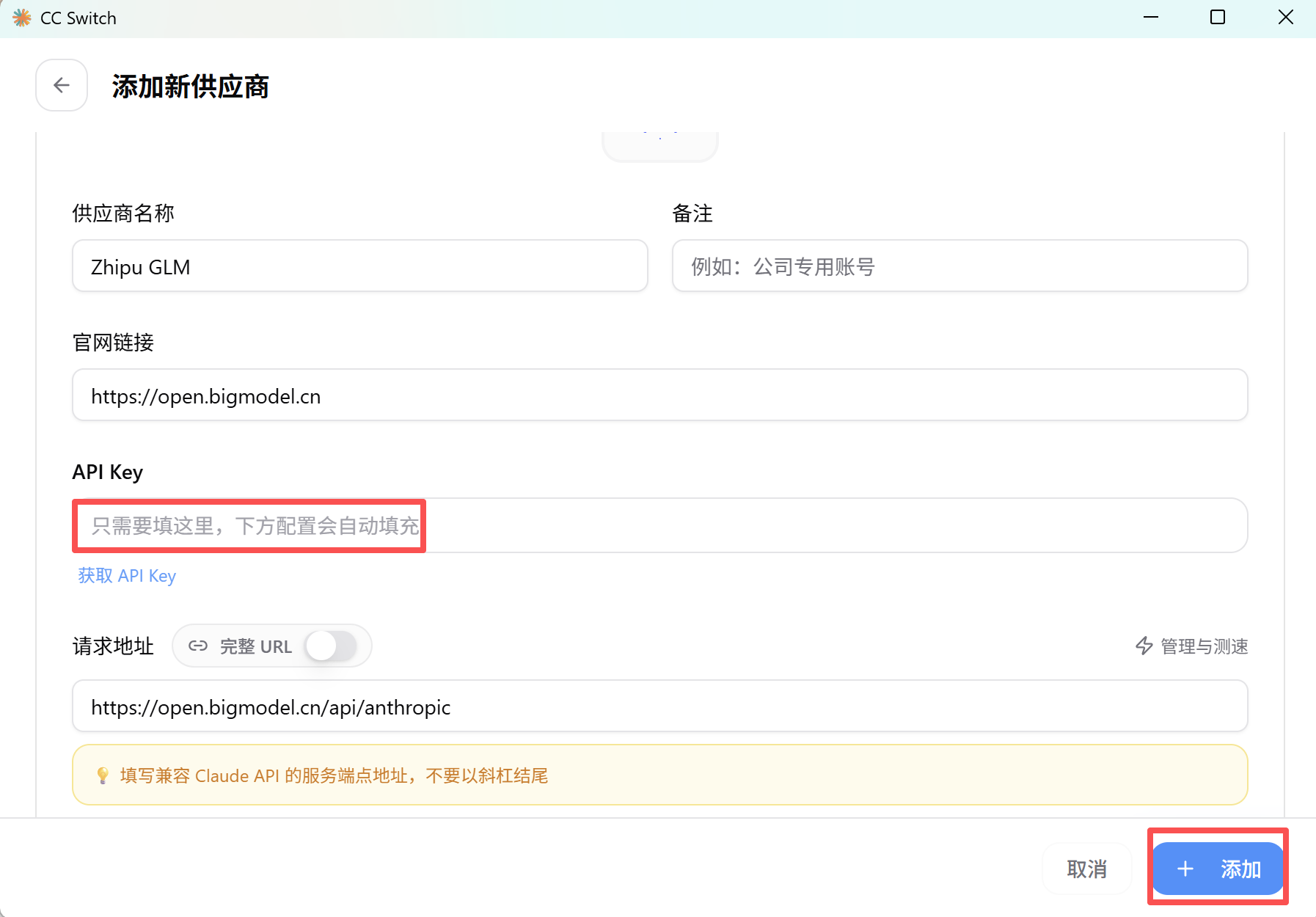
点击 + ,添加一个能够无痛连接 Claude Code 的 API 供应商。
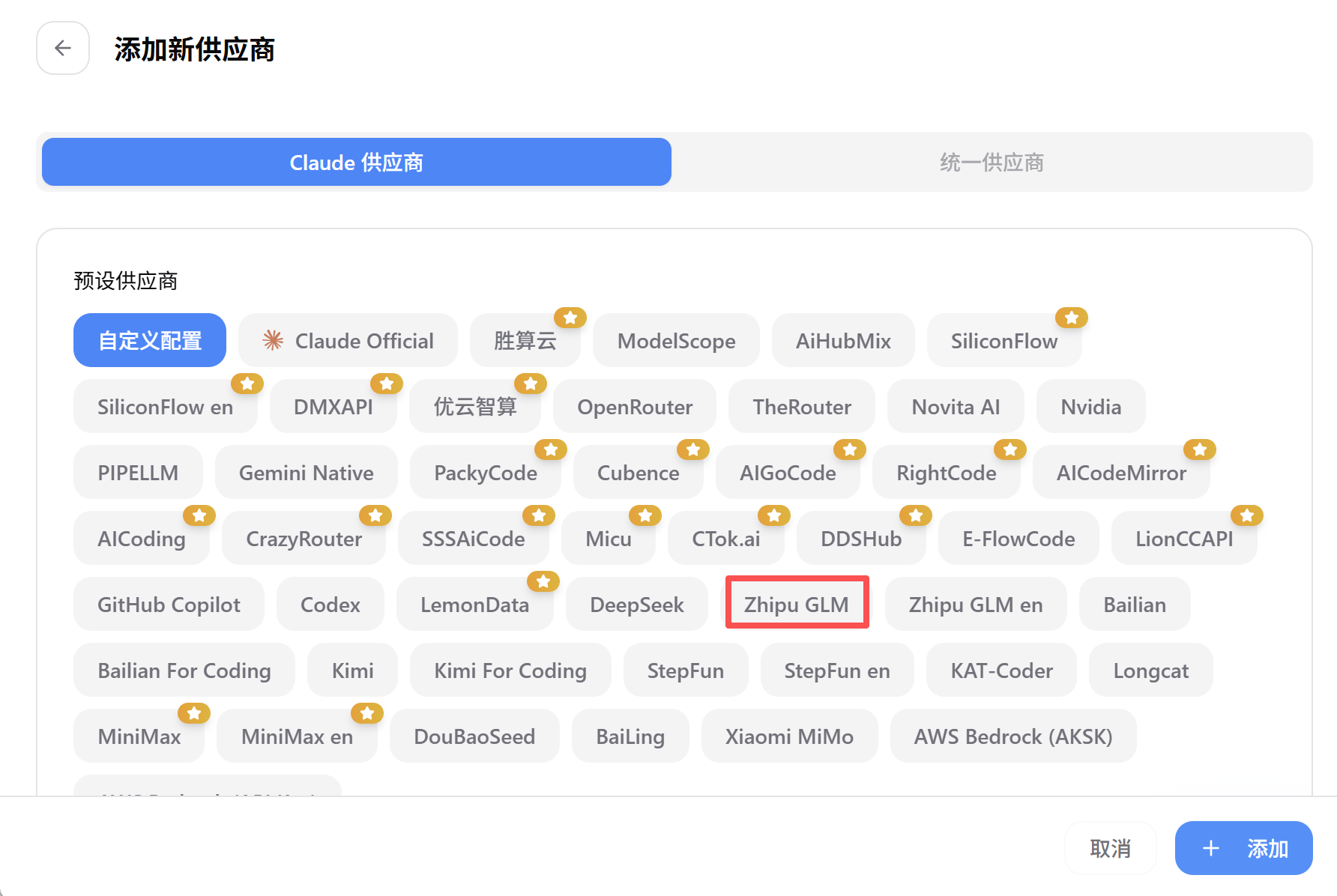
添加上面申请的api key并点击添加
点击启用
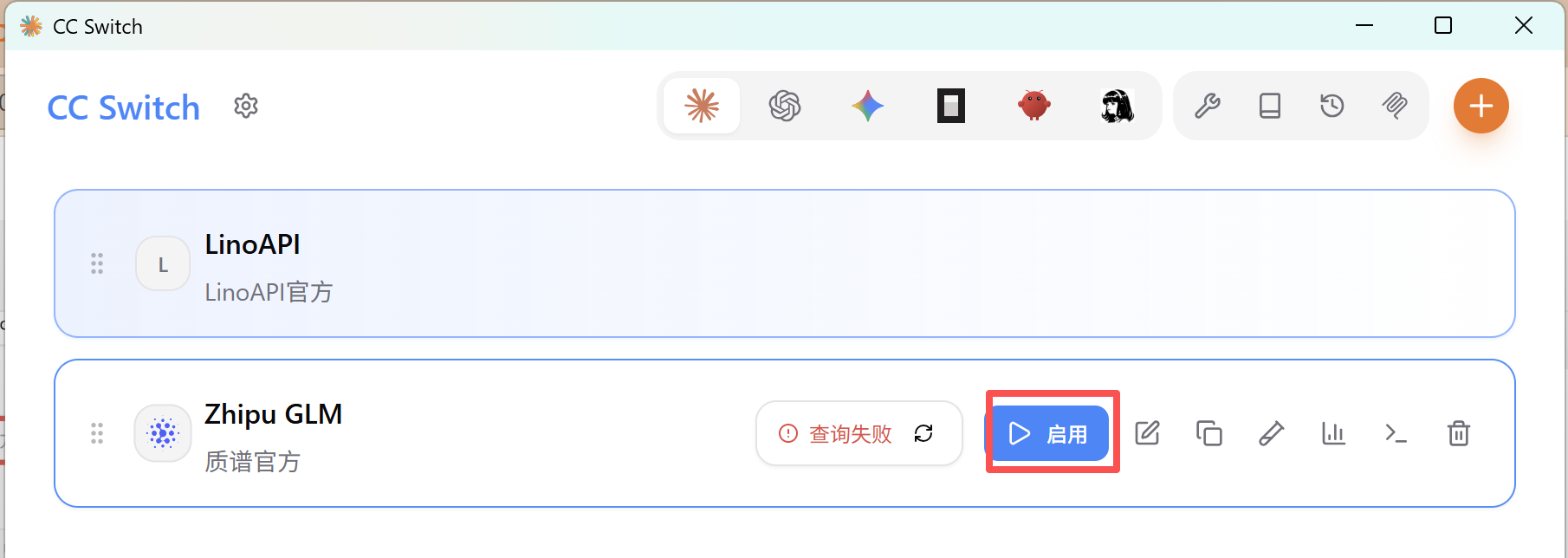
步骤3 :验证模型
在cmd中执行claude,显示如下内容,说明模型配置成功
C:\Users\cf>claude

────────────────────────────────────────────────────────────────────────────────────────────────────────────────────────
 Accessing workspace:

 C:\Users\cf

 Quick safety check: Is this a project you created or one you trust? (Like your own code, a well-known open source
 project, or work from your team). If not, take a moment to review what's in this folder first.

 Claude Code'll be able to read, edit, and execute files here.

 Security guide

 > 1. Yes, I trust this folder
   2. No, exit

 Enter to confirm · Esc to cancel

╭─── Claude Code v2.1.25 ──────────────────────────────────────────────────────────────────────────────────────────────╮
│                               │ Tips for getting started                                                             │
│         Welcome back!         │ Run /init to create a CLAUDE.md file with instructions for Claude                    │
│                               │ Note: You have launched claude in your home directory. For the best experience, lau… │
│                               │ ──────────────────────────────────────────────────────────────────────────────────── │
│            ▐▛███▜▌            │ Recent activity                                                                      │
│           ▝▜█████▛▘           │ No recent activity                                                                   │
│             ▘▘ ▝▝             │                                                                                      │
│   glm-5 · API Usage Billing   │                                                                                      │
│          C:\Users\cf          │                                                                                      │
╰──────────────────────────────────────────────────────────────────────────────────────────────────────────────────────╯

  /model to try Opus 4.5

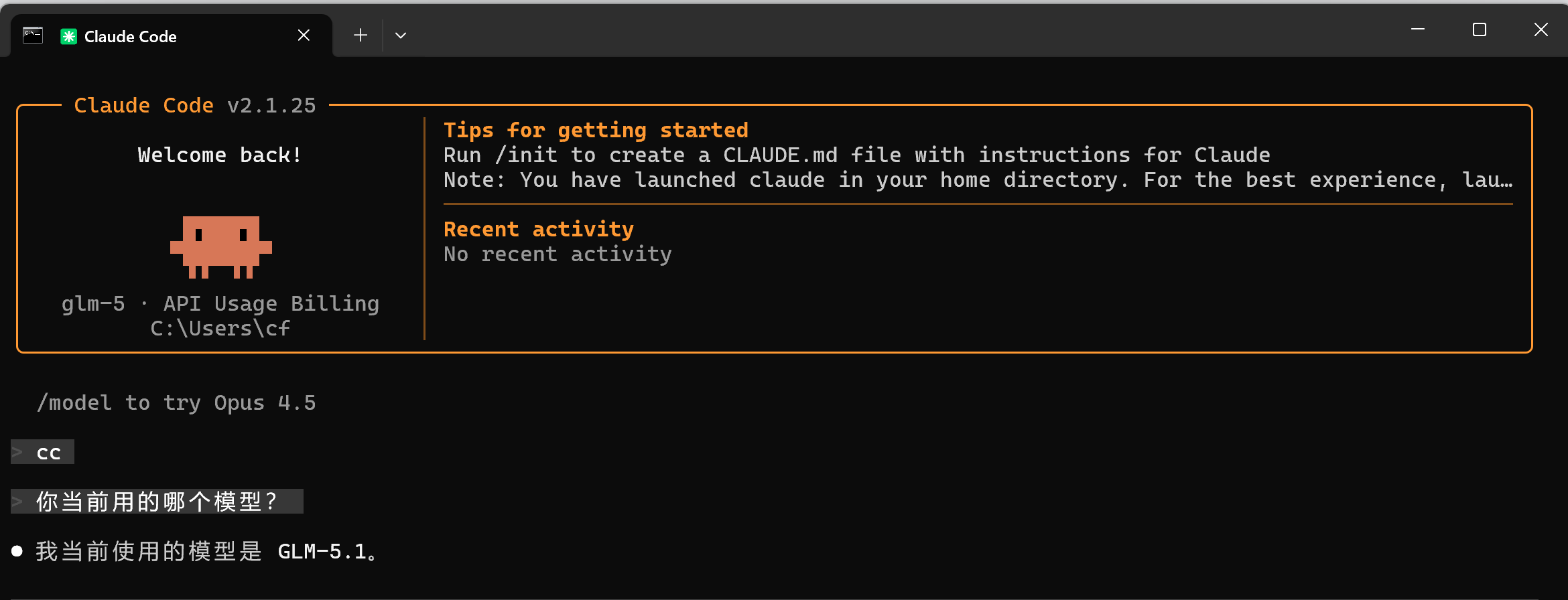
> 你当前用的哪个模型

● 我当前使用的是 GLM-5 模型。

  根据系统配置信息显示:"You are powered by the model glm-5."
配置快捷命令
配置快捷进入方式,在使用过程中发现有时会出现让点击确认,不点击又无法执行下面的操作,所以将其默认同意,在任意目录(建议放在 PATH 环境变量已包含的目录,如 C:\Windows\System32 创建一个名为 cc.bat 的文件,内容如下:
@echo off
claude --dangerously-skip-permissions %*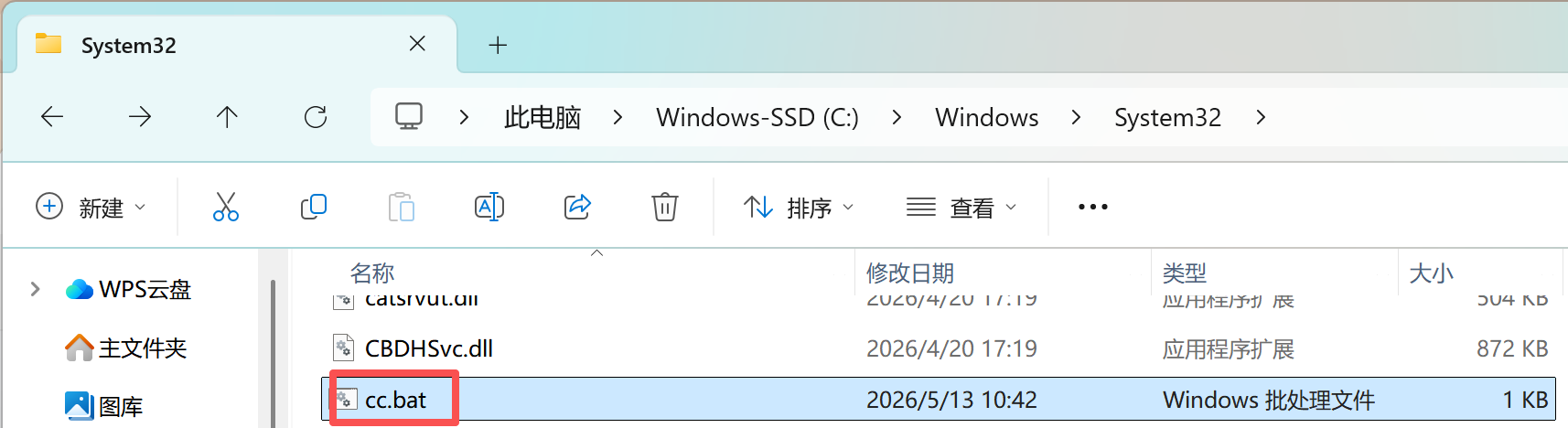
直接在cmd执行cc命令,输入 -> 你用的什么模型?

欢迎加入DeepSeek 技术社区。在这里,你可以找到志同道合的朋友,共同探索AI技术的奥秘。
更多推荐


 11
11 0
0- 0


 已为社区贡献1条内容

所有评论(0)