cursor终端的配置+使用anaconda虚拟环境
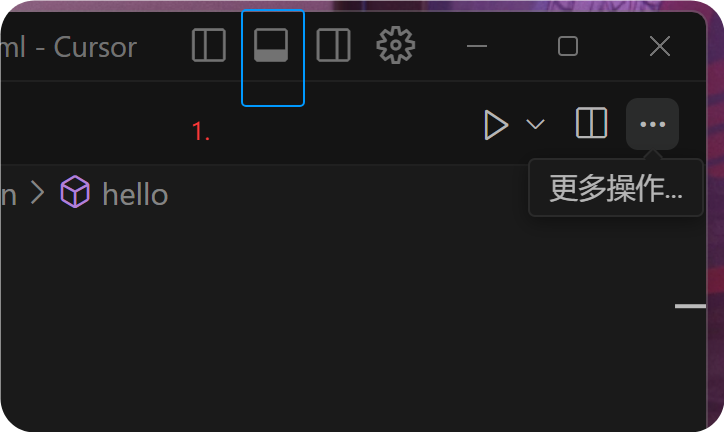
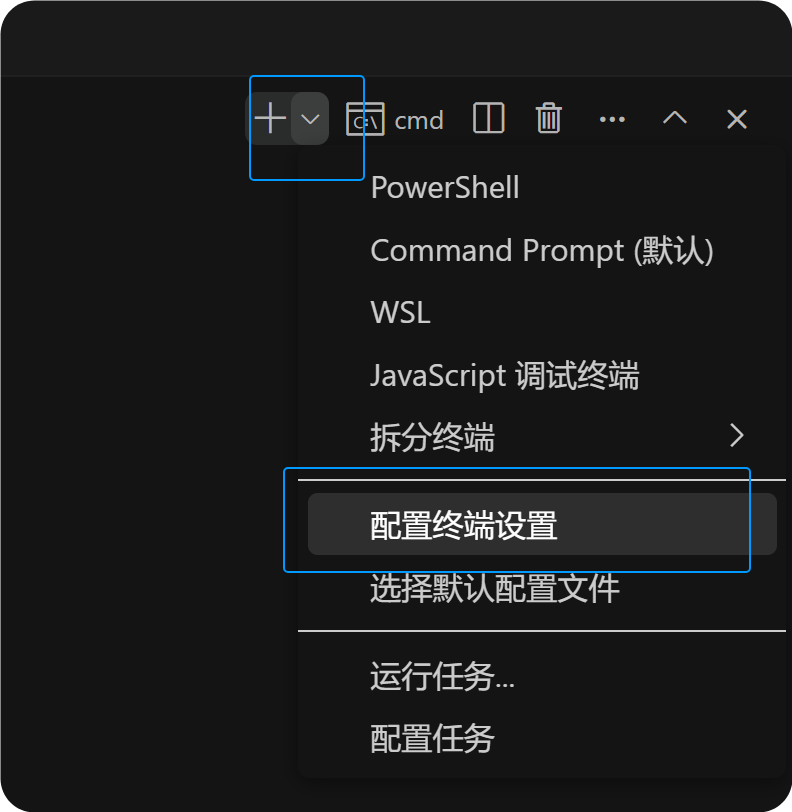
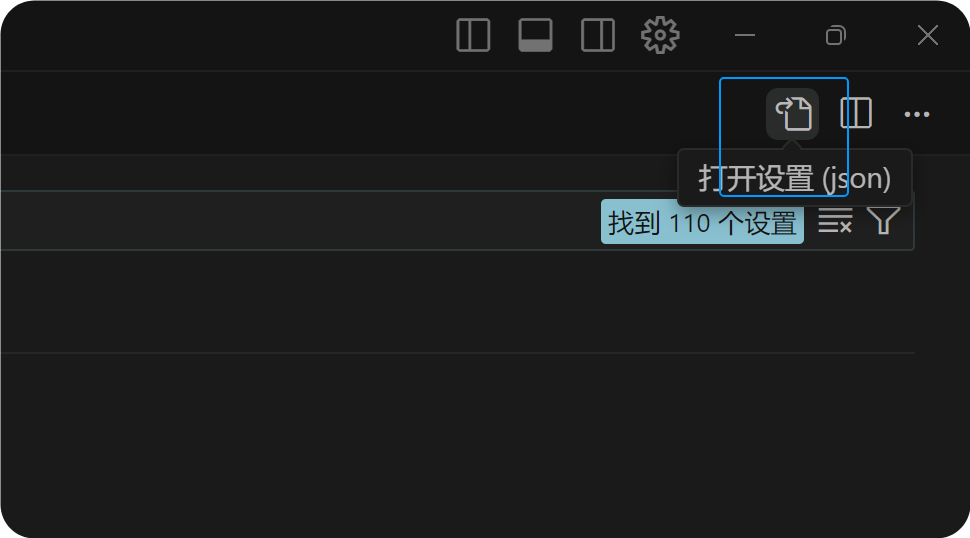
1.点击这里显示终端2.找到配置终端设置3.点击图标,看到settings.json内容。,里面定义了终端和一些编辑器行为4.内容粘贴为以下内容:// 定义终端配置文件},},},"WSL": {},// 设置默认终端为 CMD// 可选:自动保存文件→ Windows 默认 CMD→ Git for Windows 自带的 Bash shell每个 terminal profile 都定义了路径
一、终端配置
1.点击这里显示终端
2.找到配置终端设置
3.点击图标,看到settings.json内容。settings.json 配置文件,里面定义了终端和一些编辑器行为
4.内容粘贴为以下内容:
{
// 定义终端配置文件
"terminal.integrated.profiles.windows": {
"Command Prompt": {
"path": "C:\\Windows\\System32\\cmd.exe"
},
"PowerShell": {
"source": "PowerShell"
},
"Git Bash": {
"path": "C:\\Program Files\\Git\\bin\\bash.exe",
"args": ["--login", "-i"]
},
"WSL": {
"path": "C:\\Windows\\System32\\wsl.exe"
}
},
// 设置默认终端为 CMD
"terminal.integrated.defaultProfile.windows": "Command Prompt",
// 可选:自动保存文件
"files.autoSave": "afterDelay"
}
-
Command Prompt → Windows 默认 CMD
-
PowerShell → Windows PowerShell
-
Git Bash → Git for Windows 自带的 Bash shell
-
WSL → Windows Subsystem for Linux
每个 terminal profile 都定义了路径和启动参数,方便在 cursor 里切换终端类型。
设置默认终端:"terminal.integrated.defaultProfile.windows": "Command Prompt"
-
默认启动的终端是 CMD
-
也可以改成
"PowerShell"或"Git Bash",这样打开 cursor时默认终端就是你想要的。
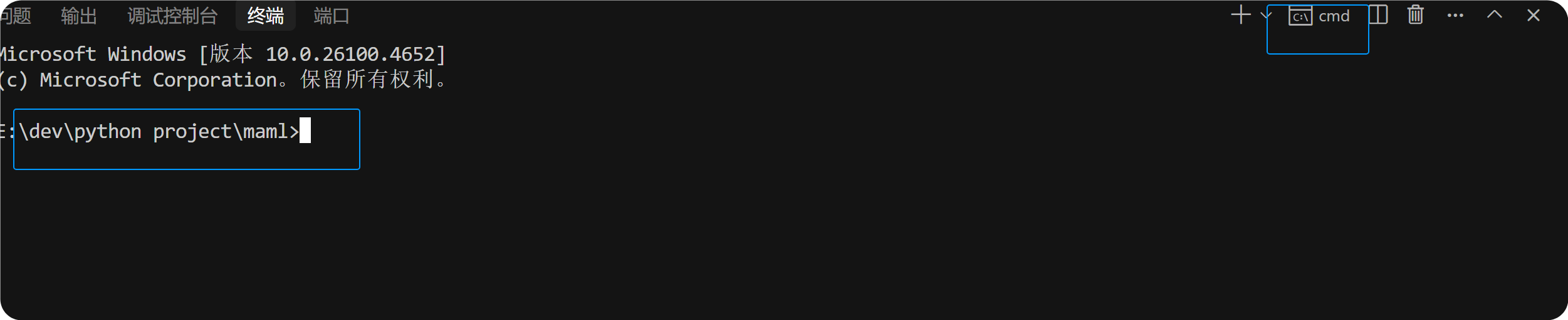
OK完成
二、使用anaconda虚拟环境
1.anaconda的安装,和虚拟环境的创建:
Ananconda的安装和使用,以及pytorch安装_conda安装pytorch-CSDN博客
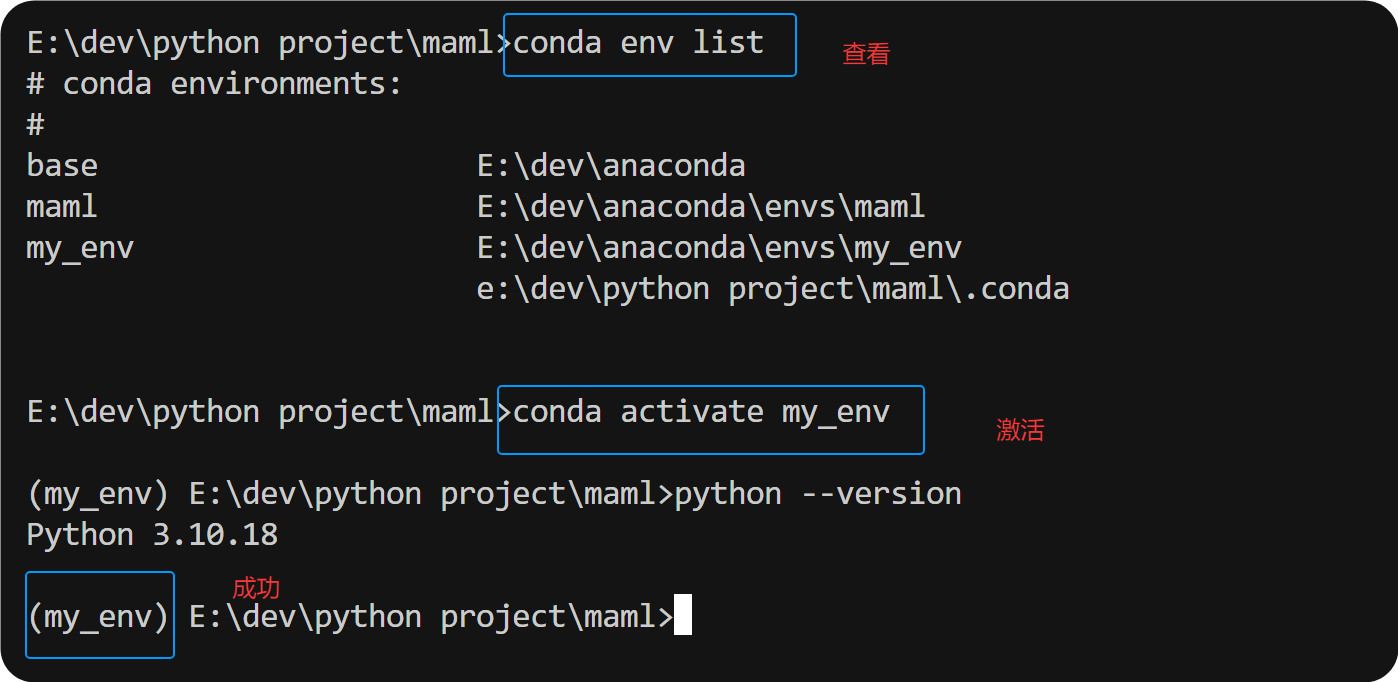
2.查看虚拟环境,选择所需的虚拟环境,激活即可

欢迎加入DeepSeek 技术社区。在这里,你可以找到志同道合的朋友,共同探索AI技术的奥秘。
更多推荐


 4
4 0
0- 0


 已为社区贡献2条内容

所有评论(0)